
The C drive running out of space is a common issue on Windows 10 computers. When it happens, nobody likes to restart from scratch. It would be ideal if we could extend the C drive without losing programs and data. Similar to previous versions, Windows 10 has an "Extend Volume" function in the native Disk Management tool. Many people shrink the D drive with another "Shrink Volume" function and get some unallocated space. But this space cannot be extended to the C drive, because "Extend Volume" is grayed out. This article introduces how to add unallocated space to the C drive in Windows 10 without losing data. You can move and merge unallocated space into the C drive with a free tool.
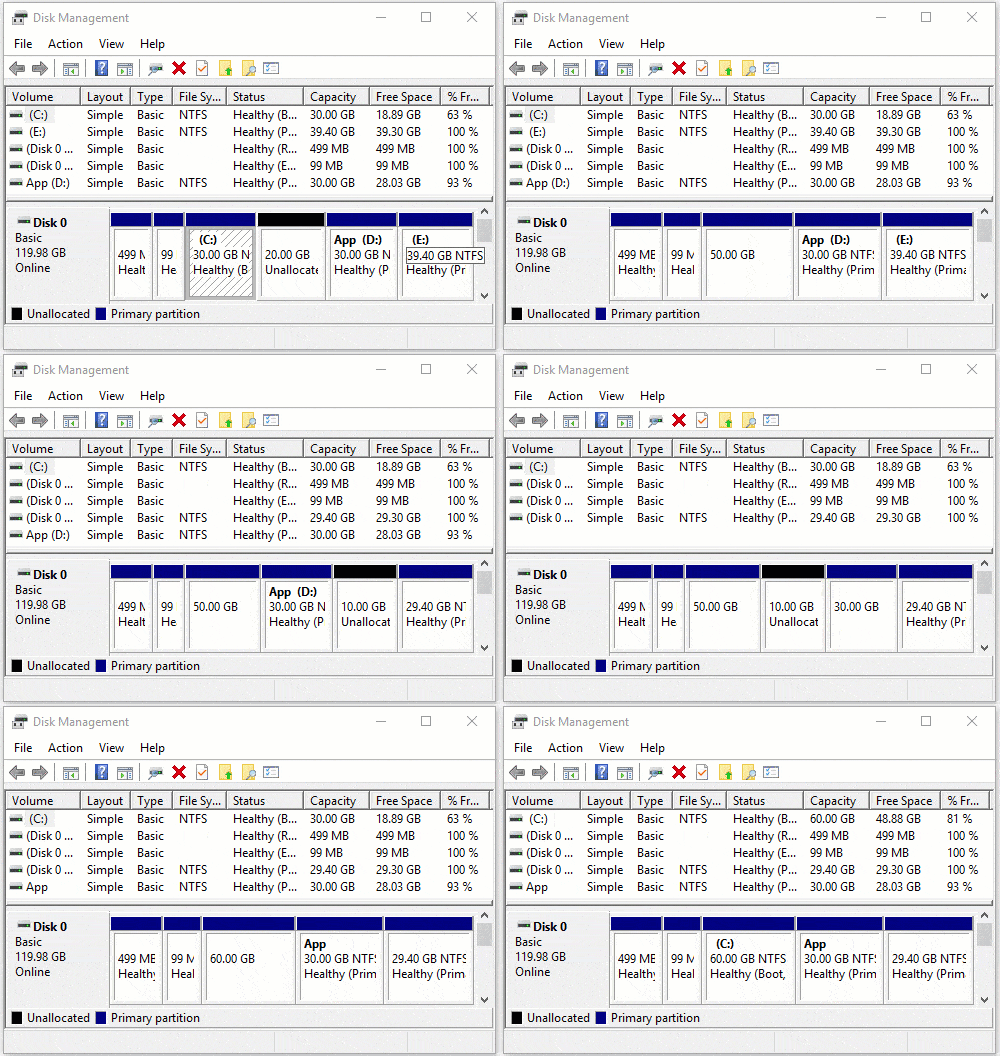
How to Merge Unallocated Space in Windows 10 with Disk Management
In the Windows 10 Disk Management console, you can get unallocated space by deleting or shrinking a volume. By shrinking a partition, a portion of the free space will be converted to unallocated, and files in this partition will remain intact, so it is better than deleting it. However, there are 2 major limitations:
- Disk Management is not 100% safe when shrinking partitions, especially when there are both primary and logical partitions on a disk.
- Disk Management can only create unallocated space on the right when shrinking a partition.
When extending a partition with Disk Management, there are another 2 limitations:
- The partition to be extended must be formatted with the NTFS file system; any other types of partitions are not supported.
- There must be adjacent unallocated space on the right of this NTFS partition.
When shrinking the D drive in Disk Management with the "Shrink Volume" function, unallocated space is created on the right of D. Because this space is non-adjacent to the C drive, "Extend Volume" is grayed out. To add this unallocated space to the C drive without using third-party software, you must delete the D drive. When there is contiguous unallocated space, "Extend Volume" is enabled for the C drive.
Steps to merge unallocated space into the C drive in Windows 10 via Disk Management:
- Right-click the D: drive and select Delete Volume.
- Right-click the C: drive and select Extend Volume, then simply click Next to finish the Extend Volume Wizard.
Two points you should know before doing this:
- Remember to back up or transfer all files in the D drive to another place before deleting it.
- If D: is a Logical drive, the method above is invalid, because "Extend Volume" is disabled even after deleting the D drive.
If D is a Logical drive or you do not want to delete it, you must move the unallocated space to the left with third-party software. To accomplish this task, NIUBI Partition Editor offers a free edition to help you. It is free for all Windows 11/10/8/7/Vista/XP home computer users. It is able to shrink, move, extend, merge, clone, convert, wipe, defrag, optimize partitions, scan bad sectors, and much more.
How to Move Unallocated Space Next to C Drive (to the Left)
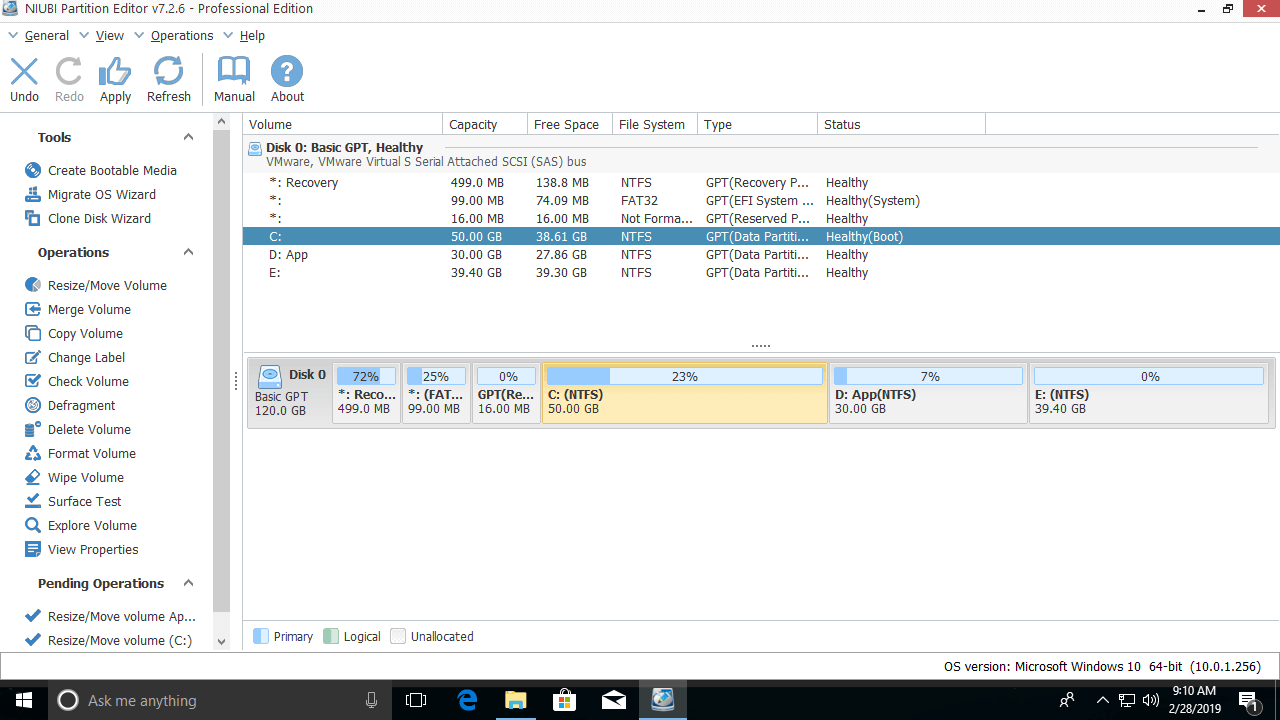
Download the free edition, and you will see all connected storage devices with graphical partition layout and other parameters.
Right-click drive D and select "Resize/Move Volume", then drag the middle of the D drive to the right in the pop-up window.
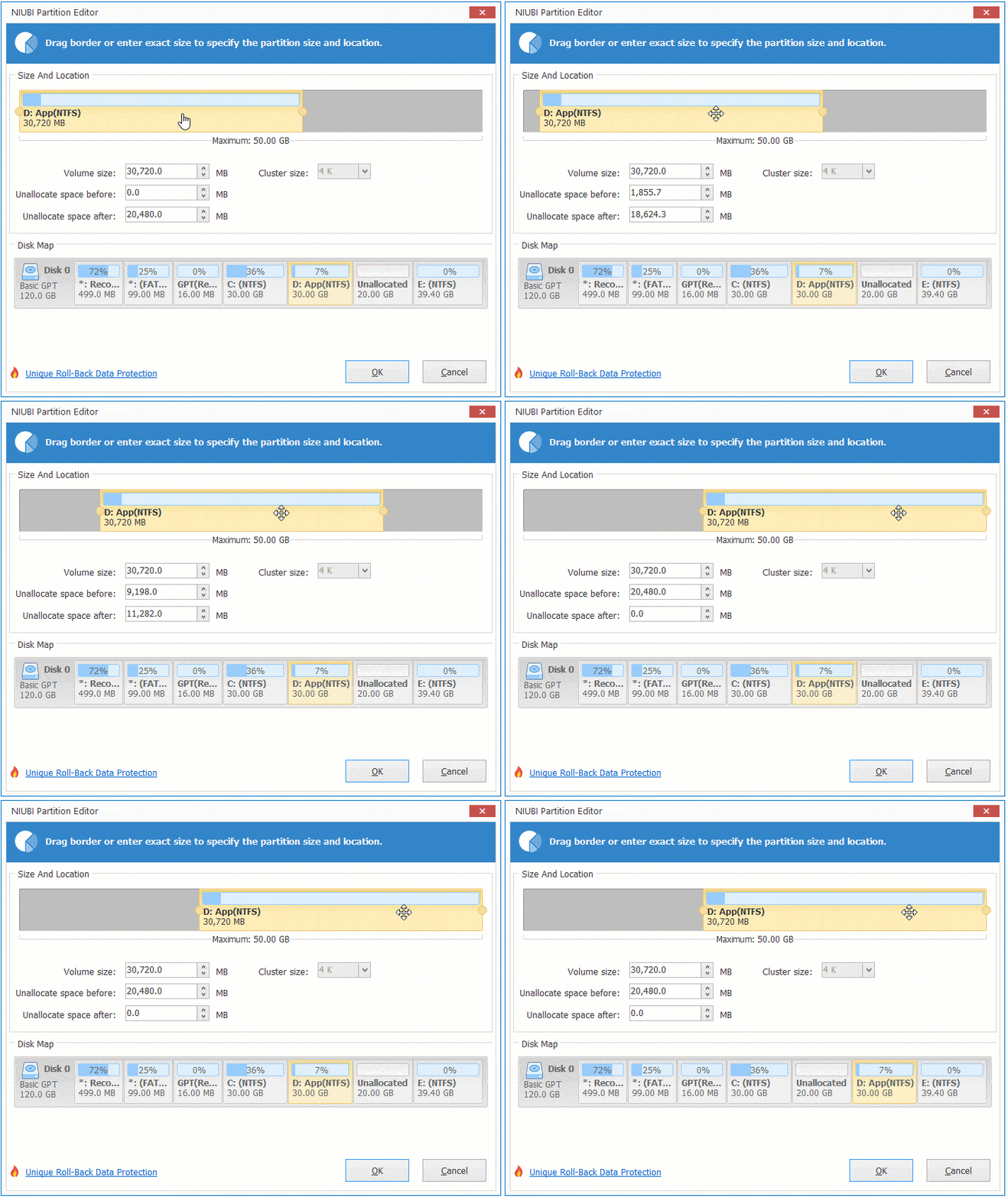
Then the unallocated space is moved next to the C drive.
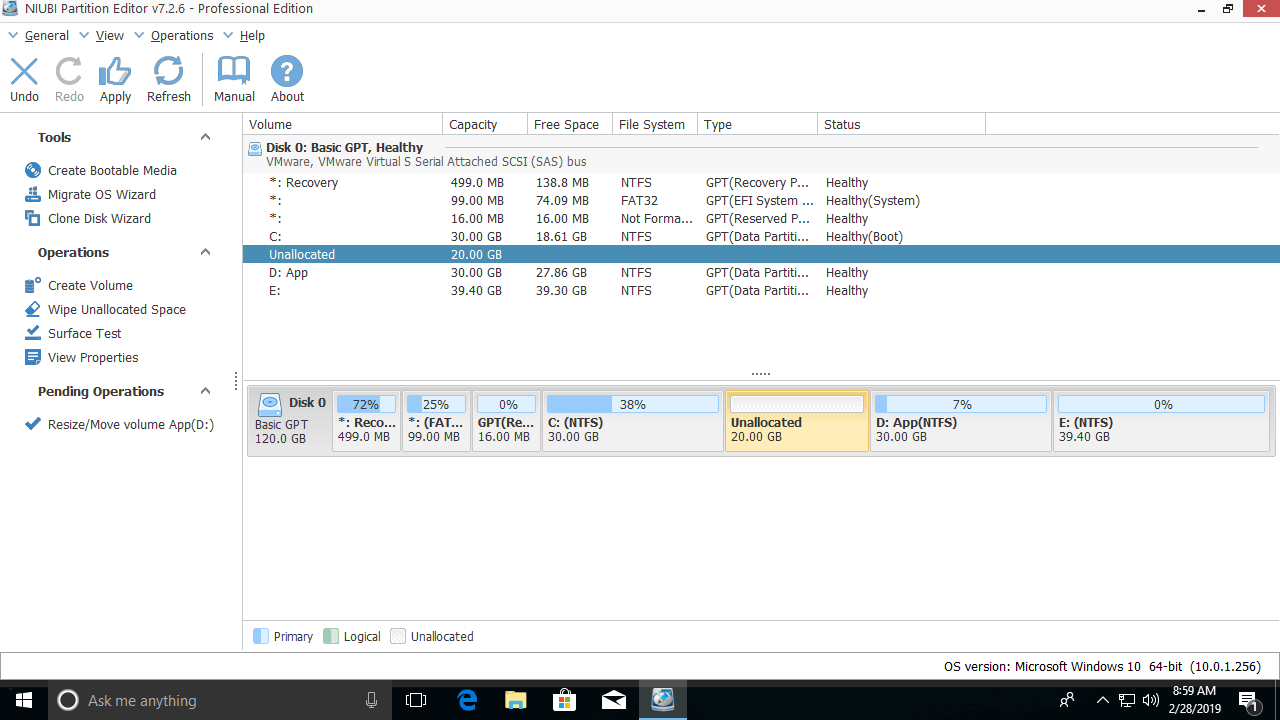
Real disk partitions will not be changed until you click "Apply" to confirm. Before clicking this button, you can undo and redo the pending operations.
How to Add Unallocated Space to C Drive in Windows 10 Computer
Right-click the C: drive in NIUBI Partition Editor and select "Resize/Move Volume" again, then drag the right border to the right in the pop-up window.
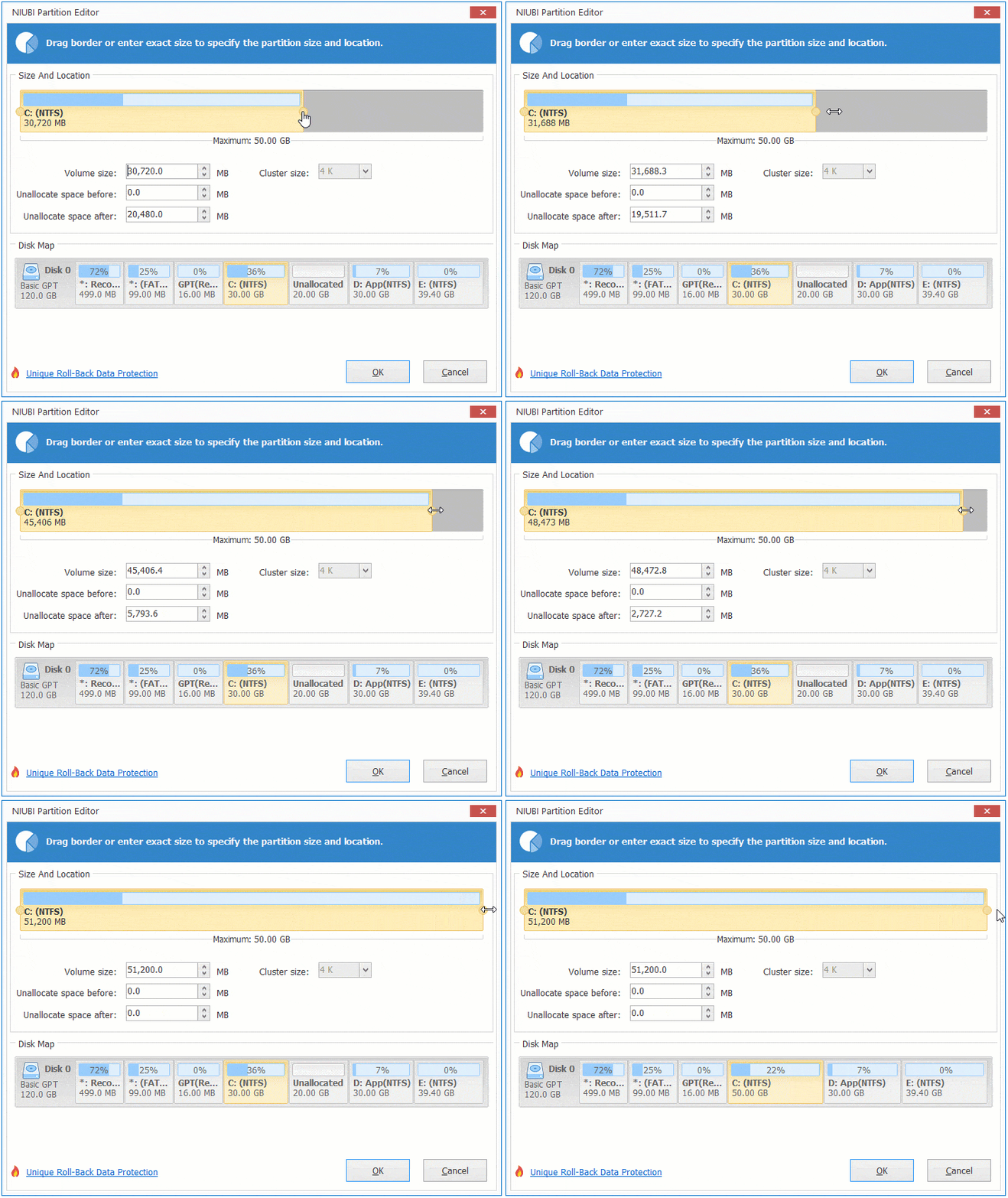
Then the unallocated space is merged into the C drive.
Watch the video on how to move and merge unallocated space into the C drive in Windows 10/8/7:
In Summary
If you have shrunk the D drive, Disk Management cannot merge the non-adjacent unallocated space into the C drive in Windows 10. Run NIUBI Partition Editor to move the unallocated space to the left and then merge it into the C drive.
If you have shrunk the non-adjacent E drive with Disk Management, you need to move E and D to the right one by one until the unallocated space is behind the C drive.
If you have not shrunk any partition, you can create unallocated space on the left of the D drive directly with NIUBI Partition Editor; then you can extend the C drive without moving the partition and the unallocated space.
 © 2009 - NIUBI Technology All Rights Reserved. |