
To optimize disk space, sometimes you need to shrink, extend, move, or combine 2 partitions. There are two typical reasons for merging partitions on a Windows 10/8/7 computer: First, the system C drive runs out of space; by combining it with another partition, you can increase the C drive free space. Second, there are too many volumes, making it difficult to find the partitions and files that you need. This article introduces 3 ways to merge partitions in Windows 10 without losing data. You can combine partitions with Windows' native tools and free partition software. Select the corresponding tool and method according to your own disk partition configuration.
3 Ways to Merge Partitions in Windows 10/8/7 Computer
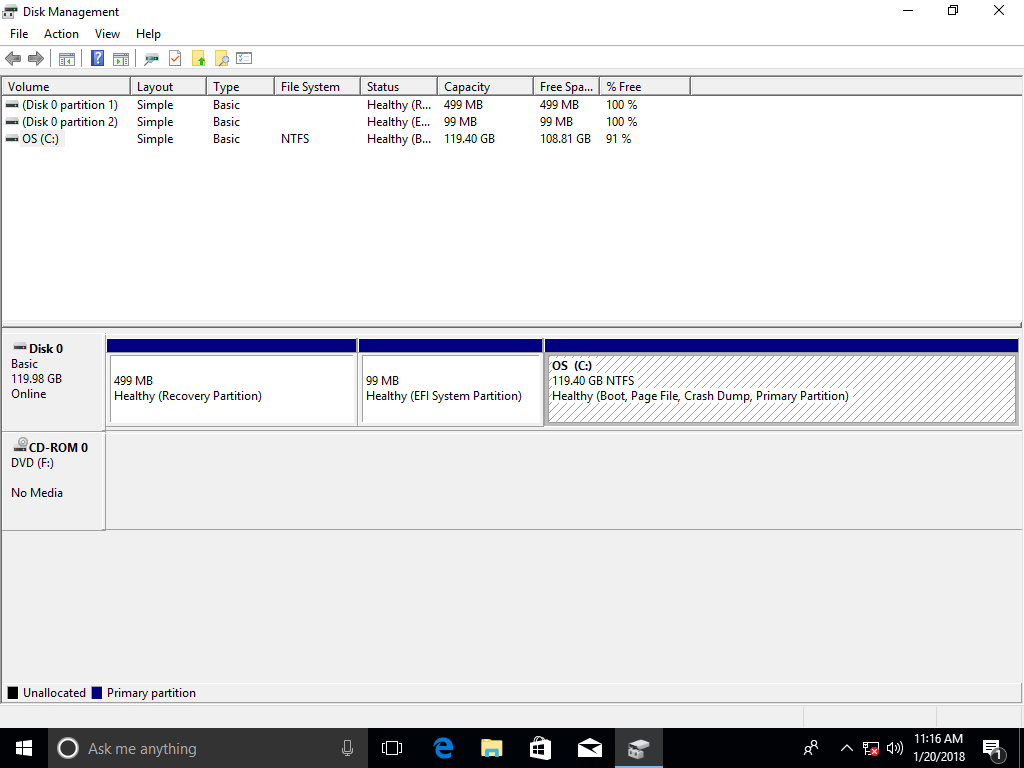
To merge partitions on a Windows 10/8/7 computer, there are 3 kinds of tools: Disk Management, Diskpart, and free partition software. There is no "Merge Volume" function in Disk Management, but you can combine 2 partitions indirectly via another "Extend Volume" function.
Compared with Disk Management, which has a graphical interface, Diskpart works via the command line. It is a bit difficult for common users. Although these two native tools work in different ways, they have the same limitations when merging partitions on Windows 10/8/7 computers:
- Both partitions to be combined must be the same type (either both primary or both logical).
- The destination partition must be formatted with the NTFS file system.
- They cannot merge 2 non-adjacent partitions.
- They can only merge a volume into the left contiguous one (for example, merge drive D into C, or merge drive E into D).
To merge 2 partitions in Windows 10/8/7, NIUBI Partition Editor is a better choice because it has no such restrictions. It has a free edition for Windows 11/10/8/7/Vista/XP home computer users.
Method 1: Merge Partitions in Windows 10 Disk Management
Windows 10 has no merge volume function. The merging operation is realized via another "Extend Volume" function. You must delete the right adjacent partition in advance, and then merge the unallocated space into the left adjacent partition. The target partition must be formatted with NTFS. The partitions to be deleted and extended must be the same type (both primary or both logical).
How to merge partitions in Windows 10/8/7 using Disk Management:
- Press Windows + X together on the keyboard and then click Disk Management in the list.
- Right-click the right adjacent partition (such as the D: drive) and select "Delete Volume", then its disk space will be converted to unallocated.
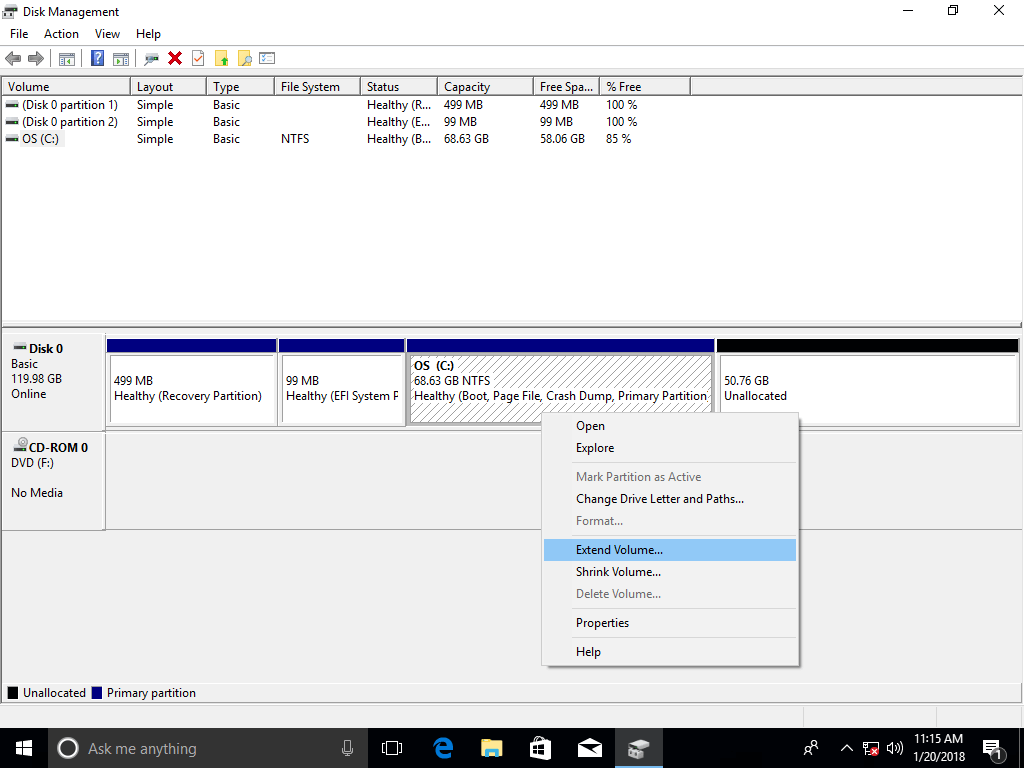
- Right-click the left adjacent partition (such as the C: drive) and select "Extend Volume".
![Extend volume]()
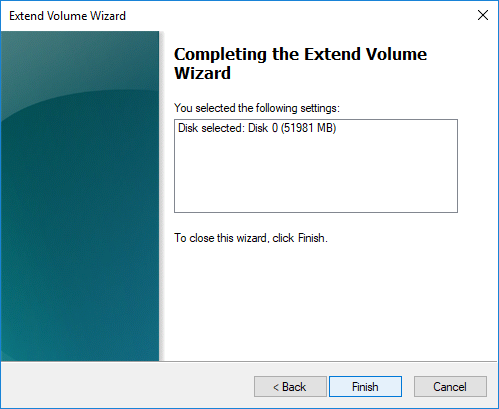
- Click Next until Finish in the pop-up dialog boxes.
![Confirm merging]()
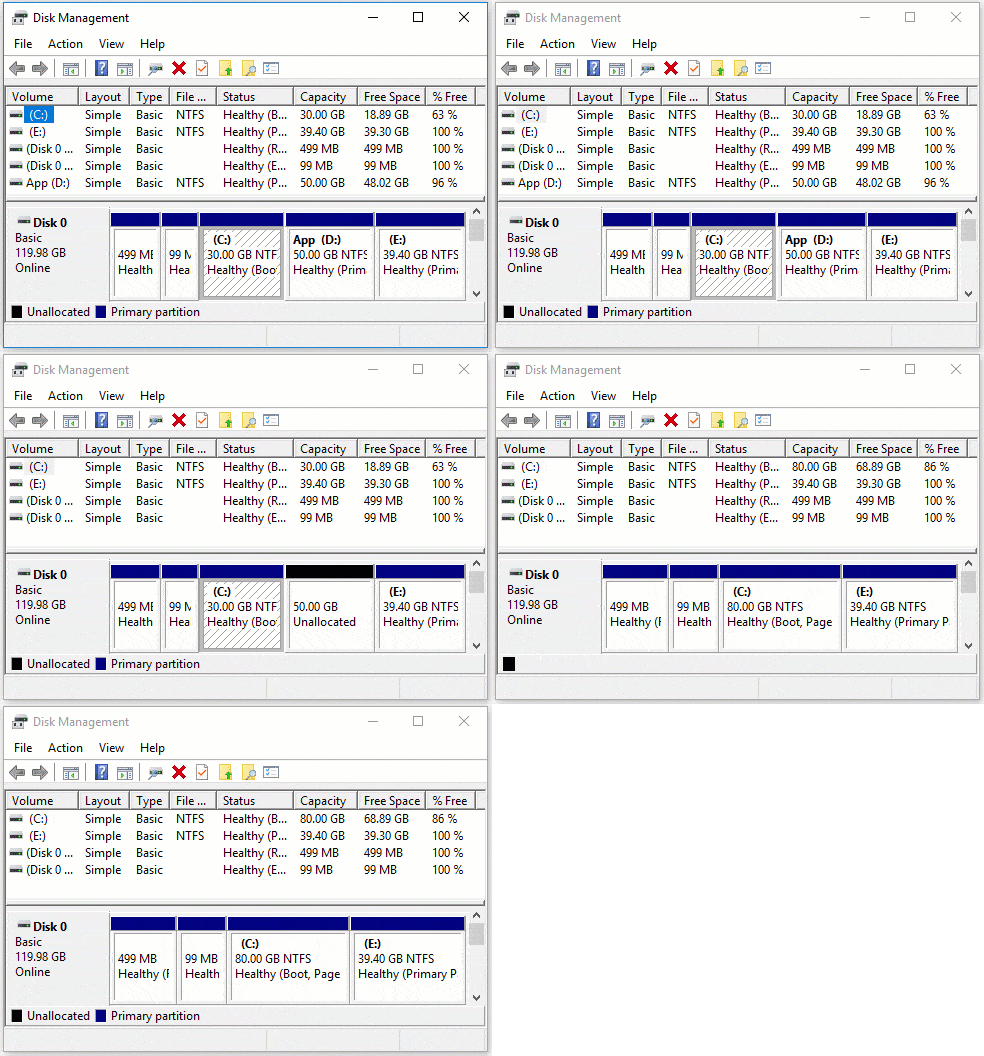
In a short time, original drive D is merged into the C drive.
Method 2: Combine Partitions in Windows 10 Using Diskpart Command
Similar to Disk Management, to merge Windows 10 partitions with the Diskpart command, you must delete the right partition in advance and merge the unallocated space into the left partition. If you don't want to delete any partition, jump to the next section.
How to merge partitions in Windows 10/8/7 with Diskpart command:
- Transfer all files in the right adjacent partition to another place.
- Press the Windows + R keys, type diskpart, and press the "Enter" key; then the Command Prompt window will be opened.
- Input list volume and press Enter, then you will see all partitions in a list.
- Input select volume D and press Enter. (D is the drive letter or number of the right adjacent partition.)
- Input delete volume and press Enter.
- Input select volume C and press Enter. (C is the drive letter or number of the left adjacent partition.)
- Input extend and press Enter.
Method 3: Merge Windows 10 Partitions with Best Free Software
NIUBI Partition Editor has more advantages for merging partitions on a Windows 10/8/7 computer, such as:
- The target partition could be either NTFS or FAT32, the left or the right partition.
- It can merge 2 adjacent partitions via several clicks, regardless of whether they are primary or logical, NTFS or FAT32.
- It is able to move unallocated space and merge non-adjacent partitions.
- When you merge 2 contiguous partitions, all files will be moved automatically to a folder in the root directory of the target partition.
Steps to merge partitions in Windows 10/8/7 with NIUBI Partition Editor:
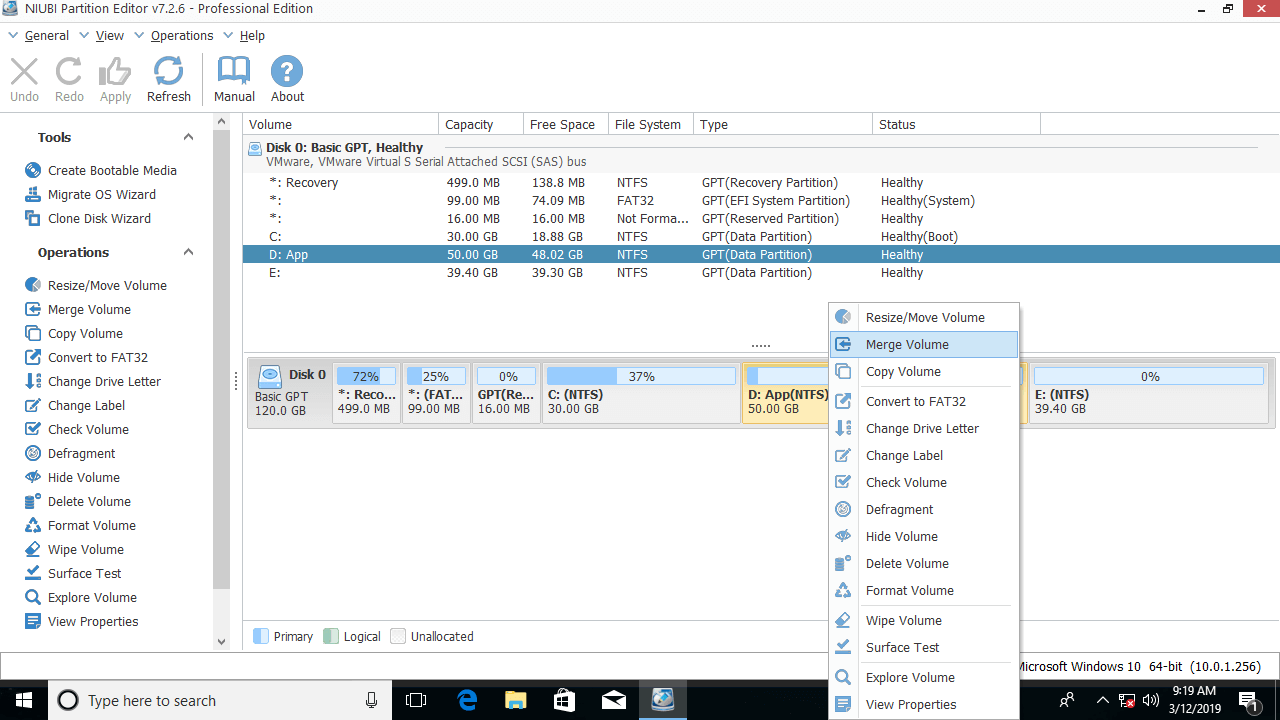
Step 1: Download the free edition, right-click either adjacent partition that you want to combine, and select "Merge Volume".
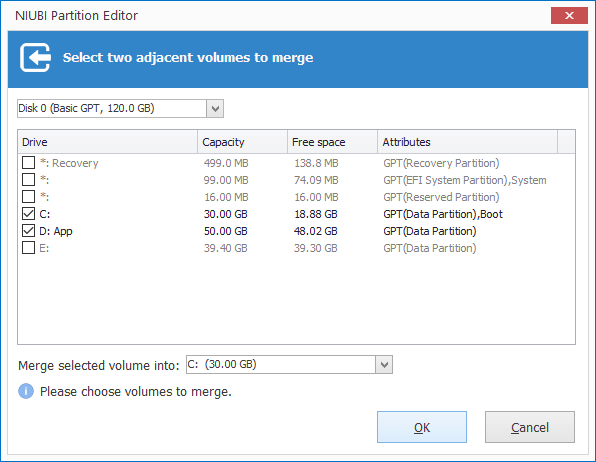
Step 2: In the pop-up window, click the check-boxes of both partitions and then click OK.
Step 3: Click the Apply button on the top left to execute the changes. (Real disk partitions will not be changed until you click "Apply" to confirm).
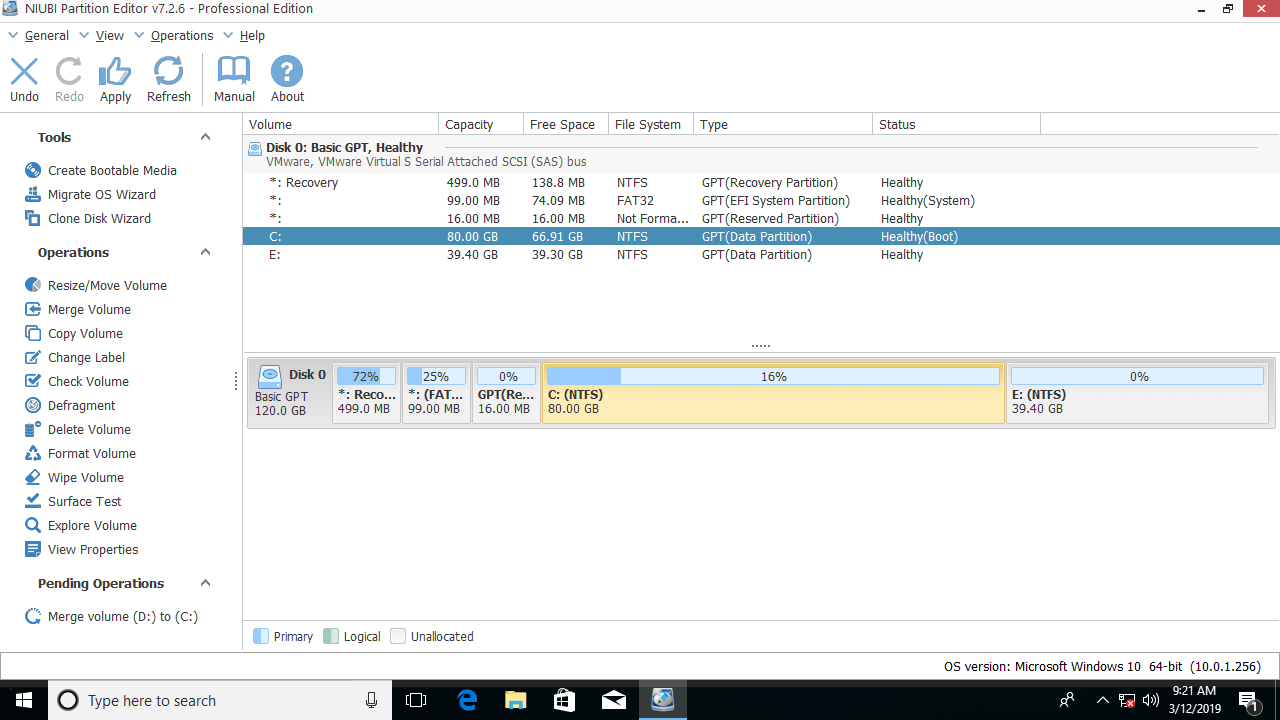
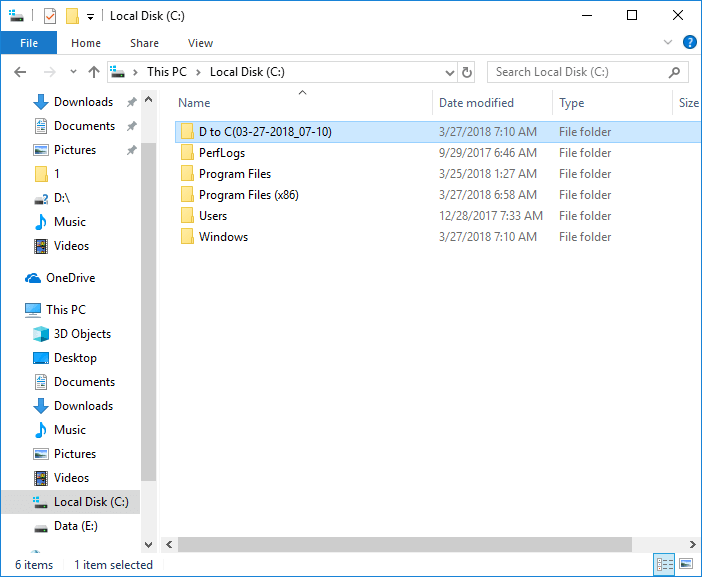
After merging volumes is complete, open the destination partition (here it is C:) in Windows File Explorer, and you will see a folder named "D to C (date and time)". All files from D will be moved to this folder automatically.
Watch the video on how to combine partitions in Windows 10/8/7/Vista/XP (32 and 64 bit):
Limitations of Merging 2 Partitions in Windows 10/8/7
One of the partitions will be removed regardless of which tool you use. This is not an issue if you just want to combine two data drives. But if you want to extend the C drive by merging D or another volume, it is not suggested, because:
- You will lose data if you forget to back up or transfer files before deleting the partition (with Windows native tools).
- All Windows services, applications, and shortcuts that point to the D: drive will stop working after deletion.
- In some cases, you still cannot extend the C drive even after deleting D.
The best idea is shrinking the D drive to extend the C drive. In this way, nothing will be changed except the partition size. Follow the steps to expand the C drive by shrinking other partitions:
About Merging Partitions on Disk 0 and Disk 1 (Separate Disks)
If you want to merge a data volume on Disk 1 into the system C drive on Disk 0, no partition software can do this, because the size of a physical disk is fixed. If there is not enough free space on a disk, you have two choices:
- Move a data partition on Disk 0 to another disk, then delete it and merge the unallocated space into the C drive.
- Clone the entire system disk to a larger one and extend the partition with the extra space.
Besides merging partitions in a Windows 11/10/8/7/Vista/XP computer, NIUBI Partition Editor helps you perform many other operations such as shrink, extend, convert, move, defrag, hide, wipe, scan bad sectors, and much more.
 © 2009 - NIUBI Technology All Rights Reserved. |