
This article introduces how to merge Unallocated space on Windows 10 (32 & 64 bit). Combine Unallocated space by dragging and dropping without losing data.
Unallocated space is a kind of disk space that is not allocated to any partition; it can be used to create a new partition, or be merged into another volume to increase free space.
You can get Unallocated space by deleting or shrinking an existing partition. By deleting this partition, all files will be deleted and all disk space will be converted to Unallocated. By shrinking this partition, all files remain intact and only a portion of the unused space will be converted to Unallocated.
Obviously, it is better to shrink a partition. To do this, you may use either the Windows 10 built-in Disk Management tool or third-party free partition software. However, because of inherent limitations, Disk Management cannot combine Unallocated space in most cases.
Cannot Merge Unallocated Space with Windows 10 Disk Management
Similar to previous versions, Windows 10 Disk Management can perform some basic operations such as creating, deleting, and formatting partitions. The advanced "Shrink Volume" and "Extend Volume" functions can help resize hard drives under specific conditions. There is no "merge" option, but you can merge Unallocated space with "Extend Volume".
However, many people report that they are unable to merge Unallocated space into the C drive after shrinking D, because "Extend Volume" is grayed out. Yes, this is caused by the inherent limitations mentioned above.
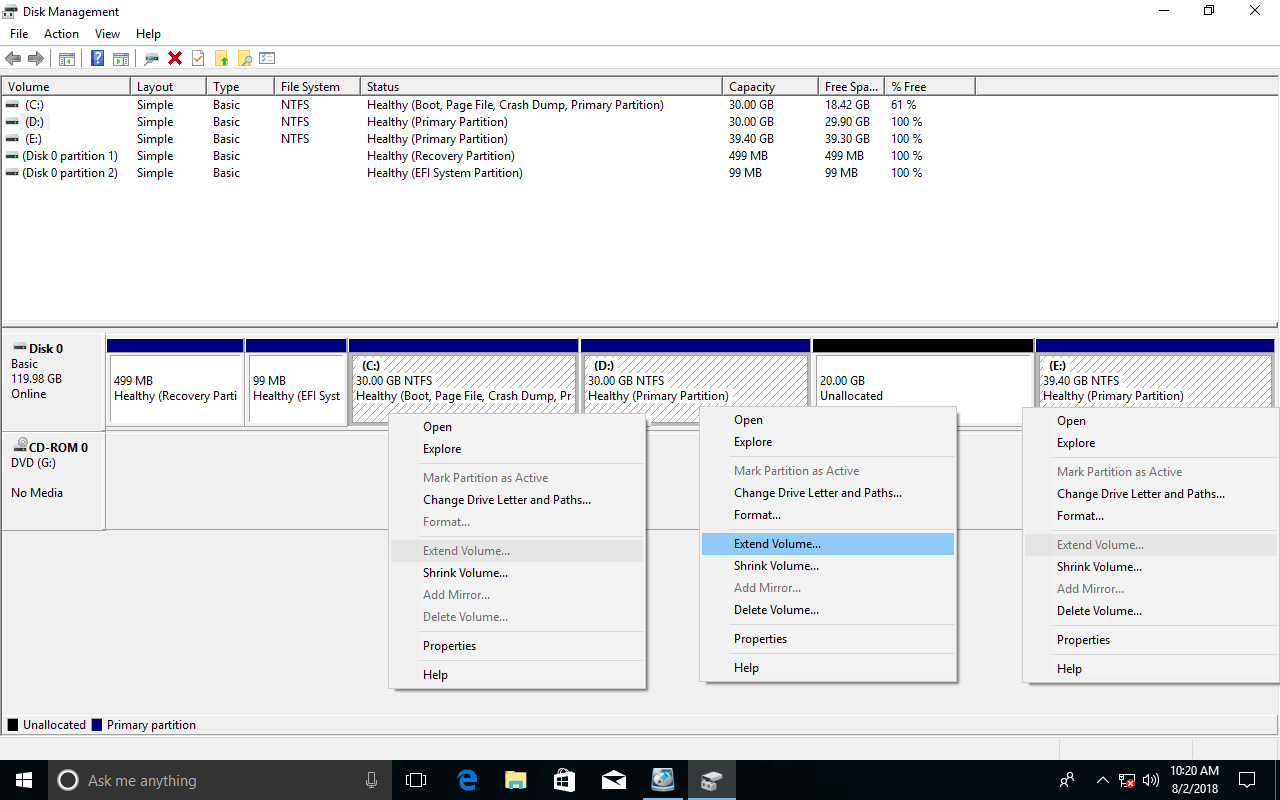
- The "Shrink Volume" function can only create Unallocated space on the right.
- The "Extend Volume" function can only merge Unallocated space into the left adjacent partition.
From the screenshot, "Extend Volume" is only valid for drive D, so in Disk Management, this Unallocated space can only be used to create a new volume.
If drive D is formatted with the FAT32 file system or this contiguous Unallocated space is generated by deleting a Logical partition, "Extend Volume" will be disabled for the D drive.
How to Merge Non-Adjacent Unallocated Space into the C Drive
In this situation, you need professional partition software to move Unallocated space from the right side of D: to the left. To move and merge Unallocated space into the C drive, you just need to drag and drop on the disk map.
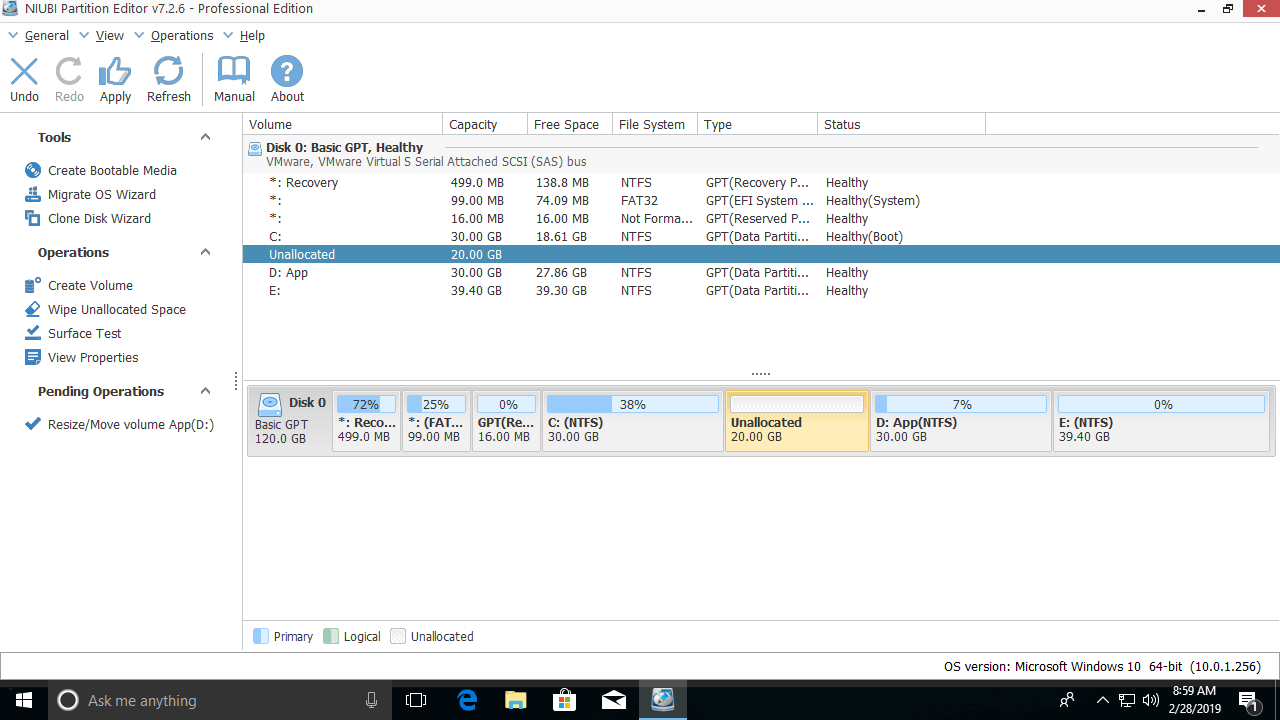
Download NIUBI Partition Editor and you will see all disk partitions and detailed parameters. The Unallocated space is on the right side of drive D:
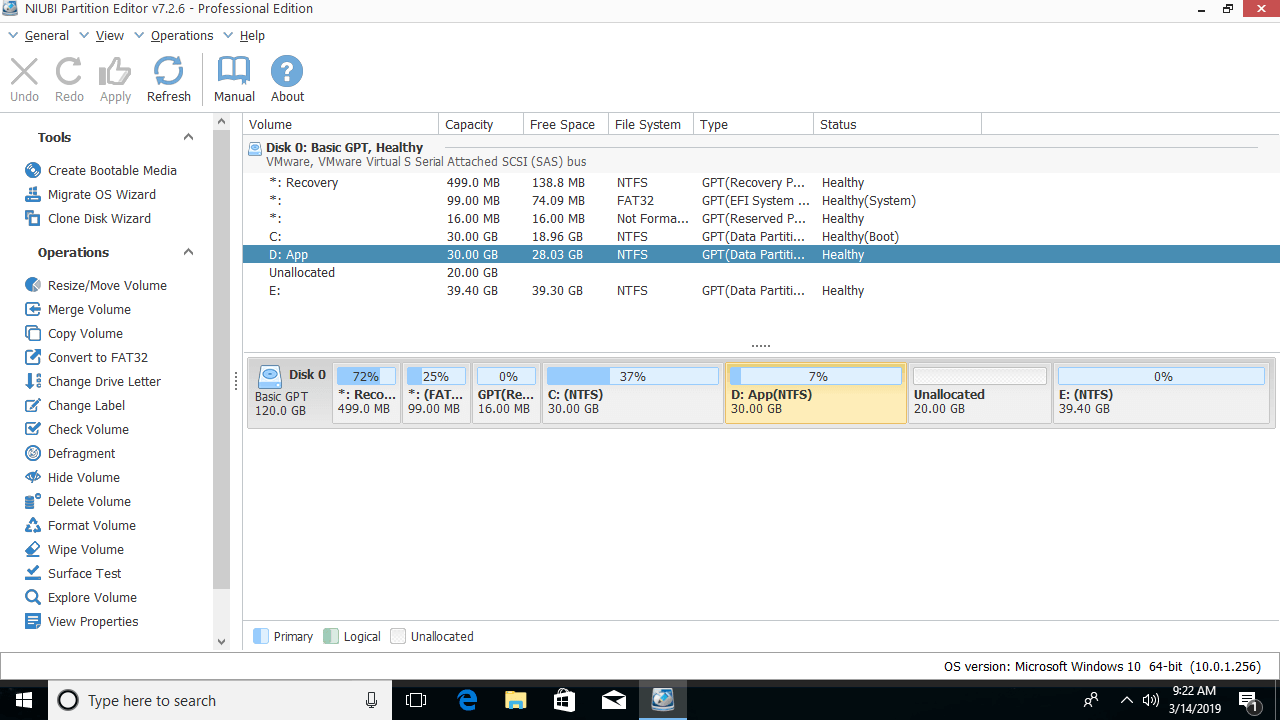
Steps to merge Unallocated space into the C drive on Windows 10:
Step 1: Right-click drive D and select "Resize/Move Volume", then drag the middle of the partition to the right in the pop-up window.
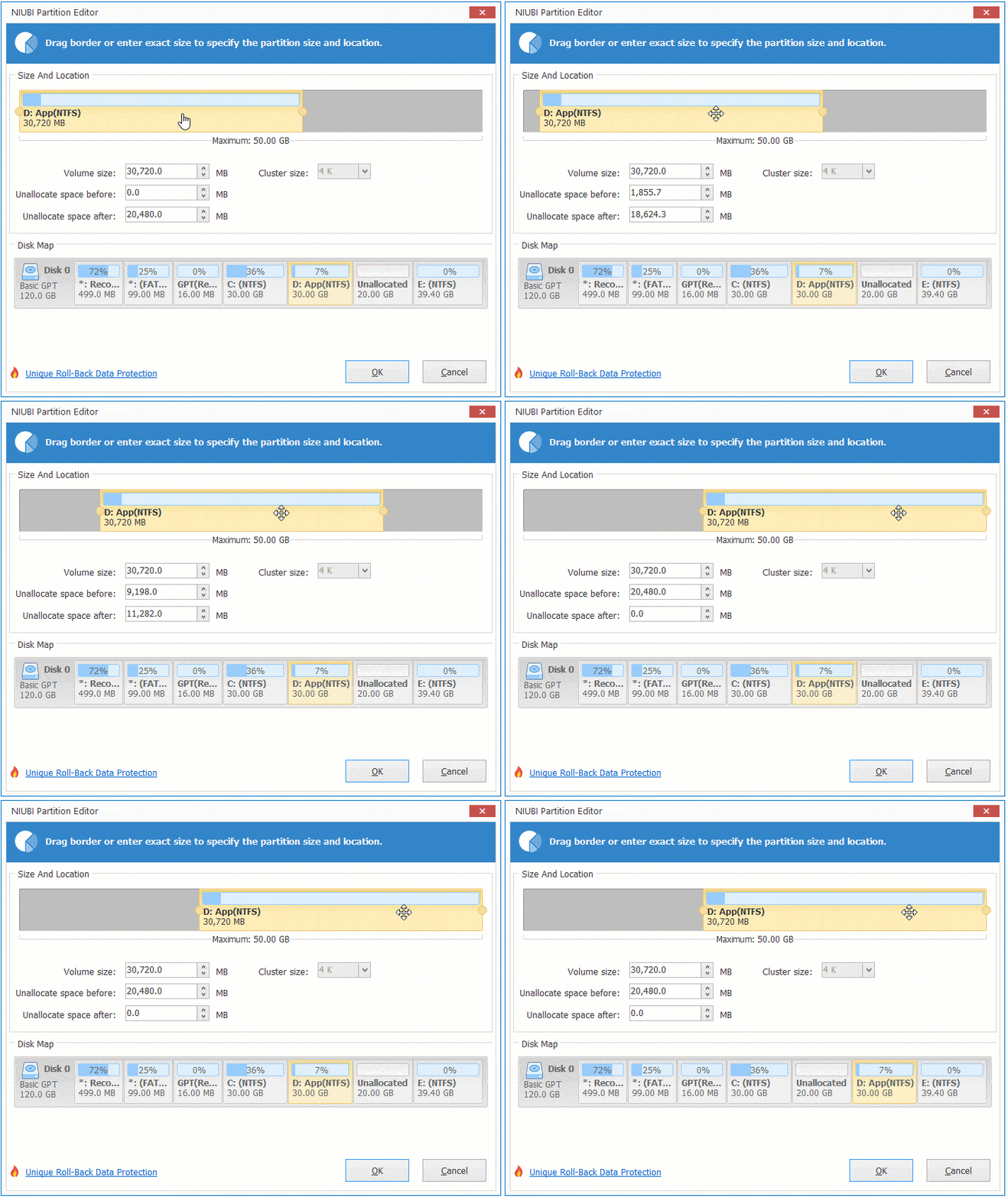
Then the Unallocated space is moved to the left side of volume D.
Step 2: Right-click drive C and select "Resize/Move Volume" again, then drag the right border to the right in the pop-up window.
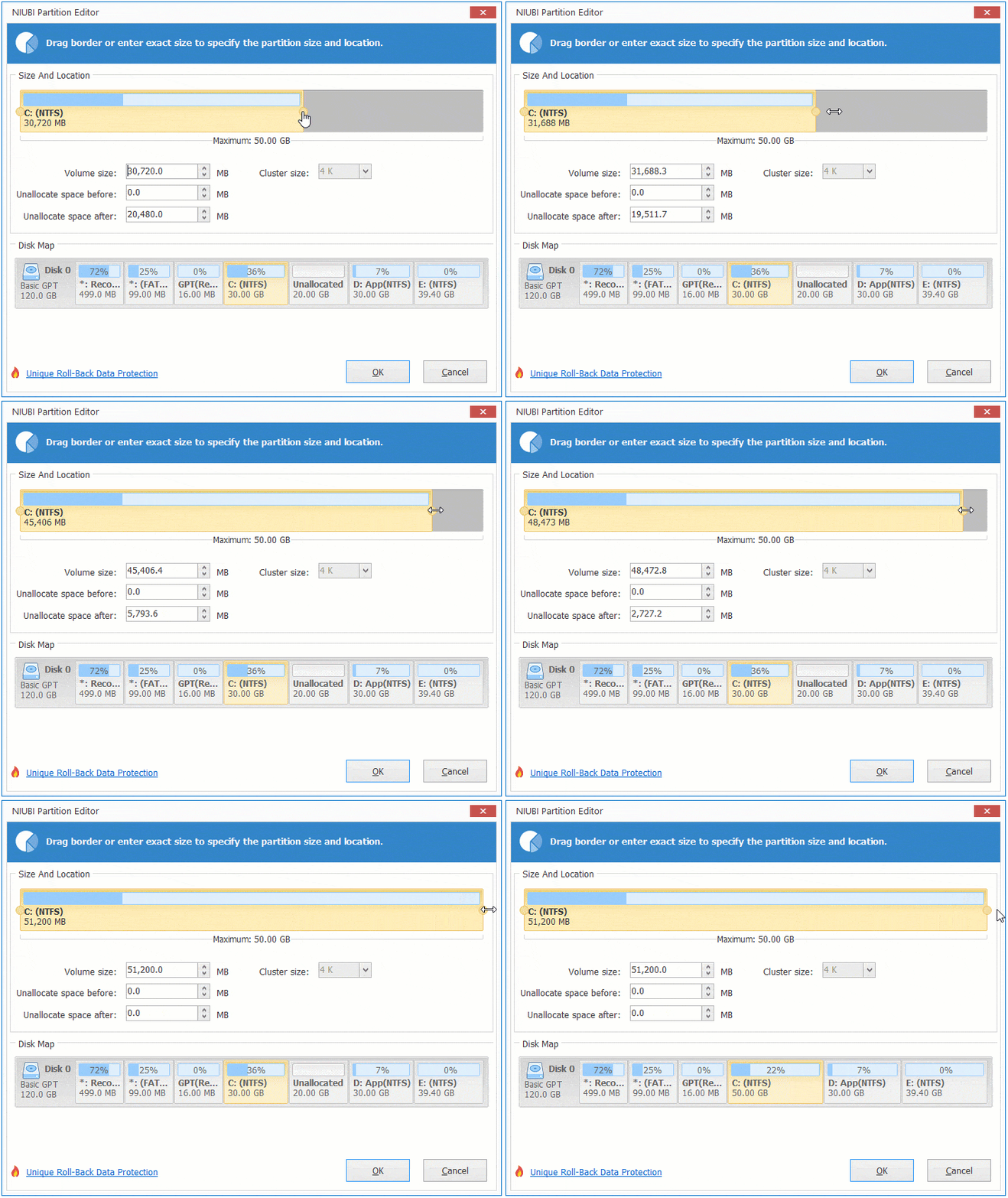
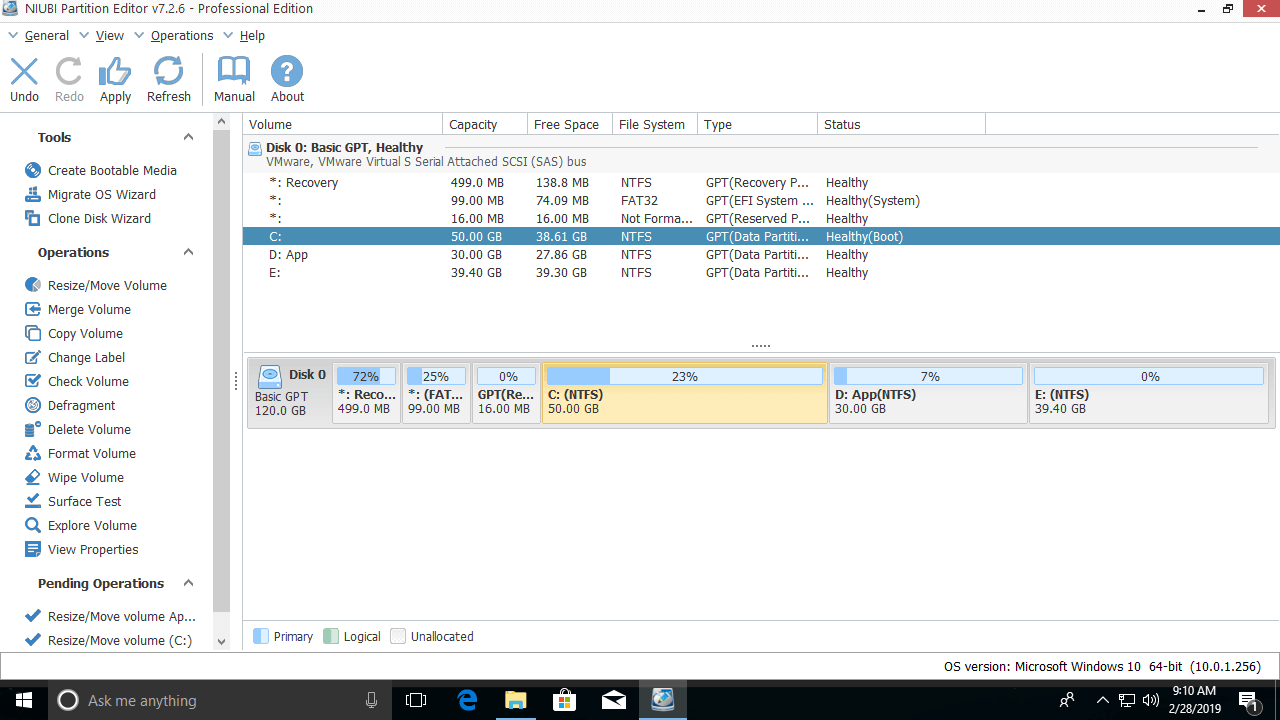
Then the Unallocated space is merged into the C drive.
How to Merge Unallocated Space into the Partition on the Right
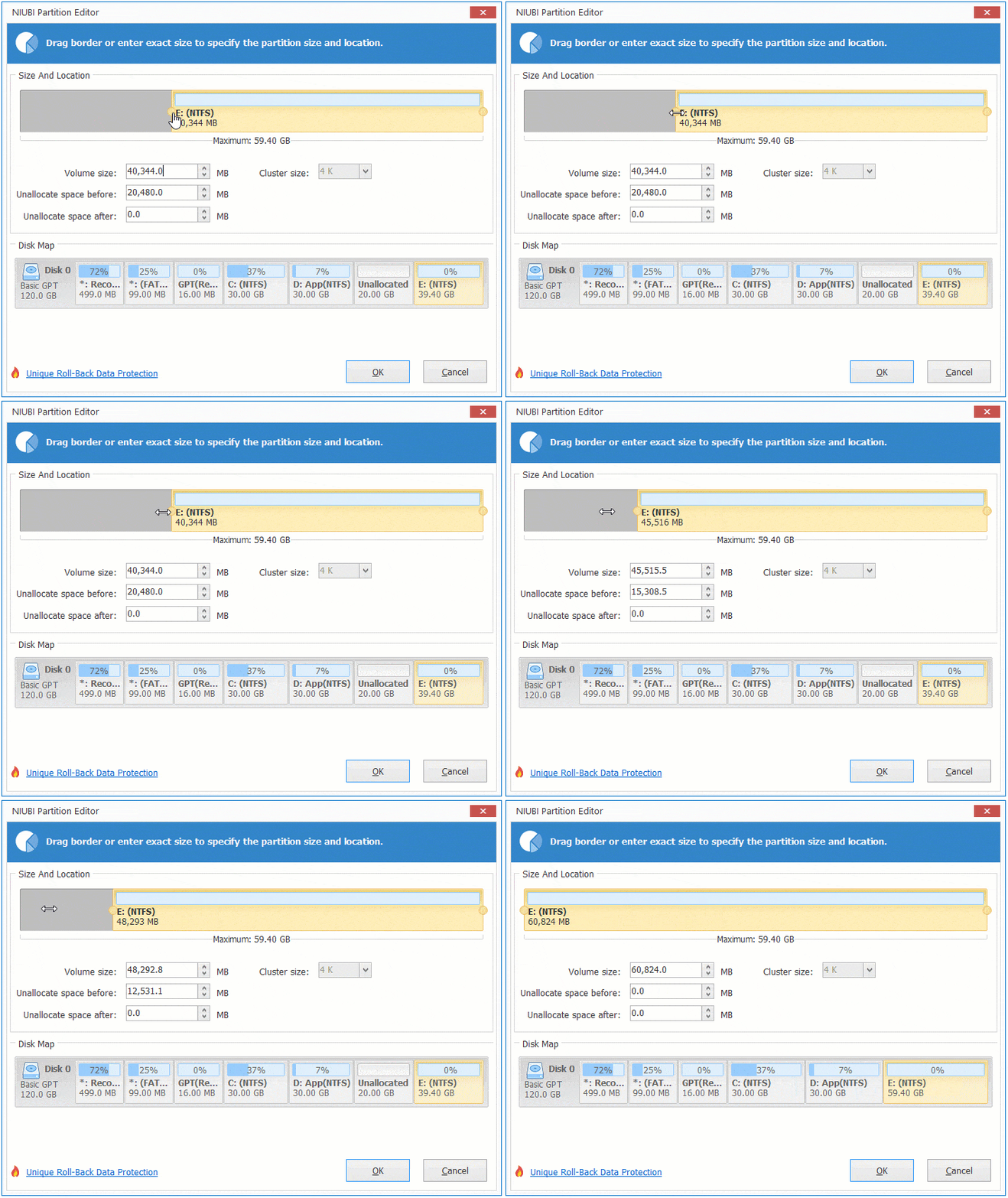
If you want to merge Unallocated space into drive E (the right adjacent partition), you can achieve this in 1 step without moving the partition.
Right-click E and select "Resize/Move Volume", then drag the left border to the left to merge the Unallocated space directly:
In Summary
Disk Management can only merge Unallocated space into the left contiguous partition. To merge Unallocated space into the right contiguous partition or any non-adjacent partitions, you need third-party software.
Compared with other software, NIUBI Partition Editor features unique 1-Second Rollback, Cancel-at-will, and Virtual Mode technologies to protect your system and data. It is also much faster because of its special file-moving algorithm.
To combine Unallocated space in Windows 10, if the partition you want to expand is contiguous on either side, simply right-click it and select "Resize/Move Volume", then drag the corresponding border towards the Unallocated space to merge it. If the Unallocated space is non-adjacent, move the partition first to make them contiguous, and then merge them.
 © 2009 - NIUBI Technology All Rights Reserved. |