
When the system C drive runs out of free space, many administrators try to extend it with free space from other partitions. This is the best choice because nobody wants to waste a long time recreating partitions and restoring from backups. However, when using the native Disk Management tool, users often find that the Extend Volume option is grayed out. This article explains why Disk Management is unable to extend the system partition and what to do when you cannot extend C drive in Windows Server 2019/2022.
1. Why Disk Management Cannot Extend C Drive in Server 2019/2022
A lack of adjacent Unallocated space is the most common reason why you cannot extend C drive in Server 2019/2022 Disk Management.
The size of a physical hard disk is fixed. To extend the C drive, there must be Unallocated space on the same disk. You can get Unallocated space by either shrinking or deleting another volume. Disk Management has a "Shrink Volume" function, but it cannot make Unallocated space on the left side.
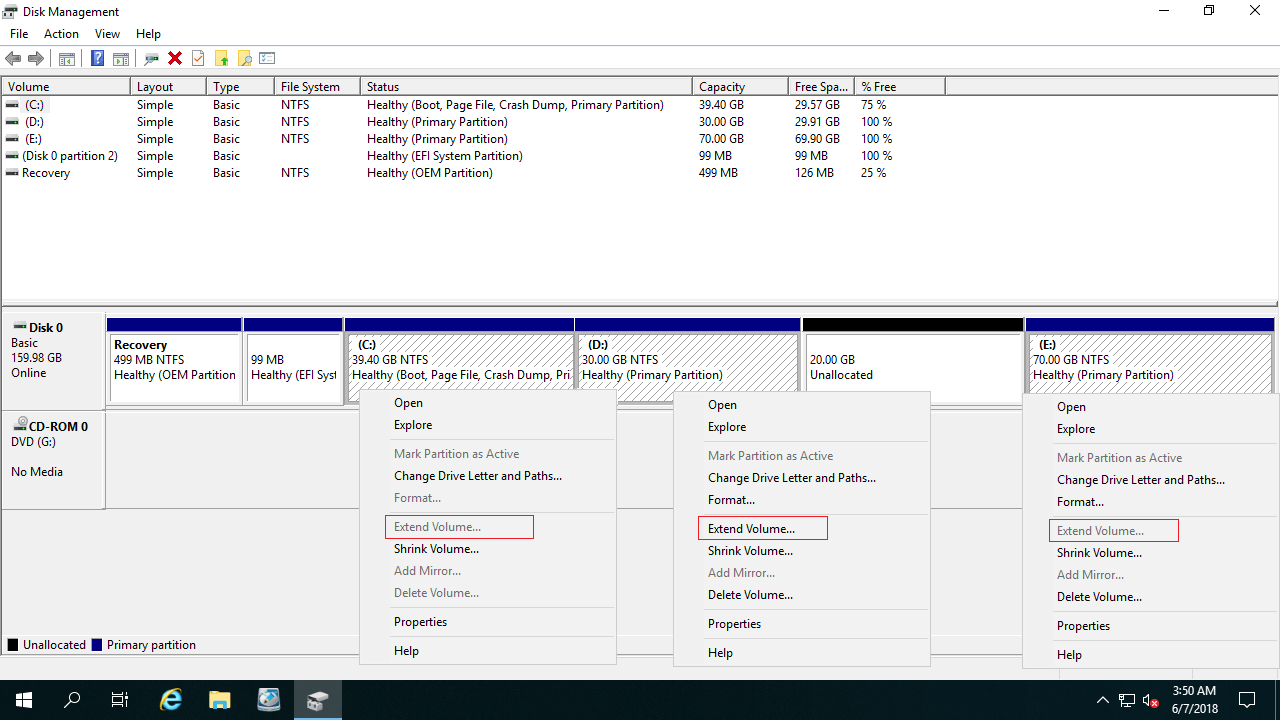
As you can see in the screenshot, after shrinking drive D, the Unallocated space is generated on the right side of D. However, the "Extend Volume" function requires this Unallocated space to be adjacent and on the right side of the C drive.
Because the C drive is non-adjacent to this newly generated Unallocated space, the Extend Volume option becomes grayed out and unavailable.
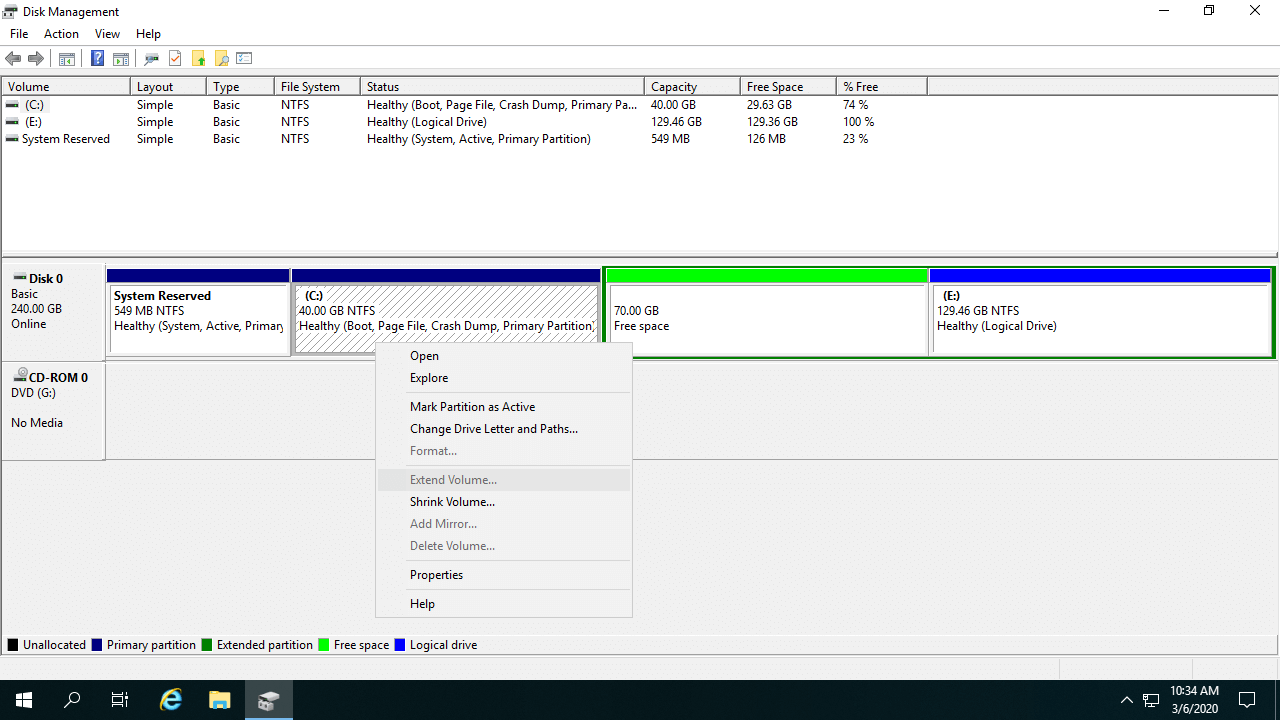
If your system disk is an MBR disk, there is another limitation. On an MBR disk, the partition you delete and the one you want to expand must be the same type (Primary or Logical).
Because the system C drive is always a Primary partition, if the adjacent drive D is a Logical partition, Disk Management cannot extend the C drive even after you completely delete drive D.
Deleting a Logical partition converts the space into "Free Space" instead of Unallocated space. To convert it to Unallocated space, you would have to delete all Logical drives and the entire Extended partition, which is highly impractical.
2. What to Do When You Cannot Extend C Drive in Server 2019/2022
If you have already shrunk drive D and got non-adjacent Unallocated space, you just need to move drive D to the right. Then the Unallocated space will be contiguous to the C drive. (Note: If there is a Recovery partition between C and D, you need to move it to the right as well.)
Steps when you cannot extend C drive in Windows Server 2019/2022 after shrinking D:
- Download NIUBI Partition Editor, right-click drive D:, and select "Resize/Move Volume".
- In the pop-up window, place your mouse cursor in the middle of drive D and drag it towards the right. Then, the Unallocated space will be moved to the left.
- Right-click the C: drive, select "Resize/Move Volume" again, and drag its right border towards the right to combine this Unallocated space.
- Click "Apply" on the top left to execute.
If you cannot extend the C drive because the adjacent drive D is a Logical partition, you do not need to delete it. NIUBI Partition Editor can shrink a Logical partition and make Unallocated space on the left directly. The operational steps are exactly the same whether the partitions are NTFS or FAT32, Primary or Logical.
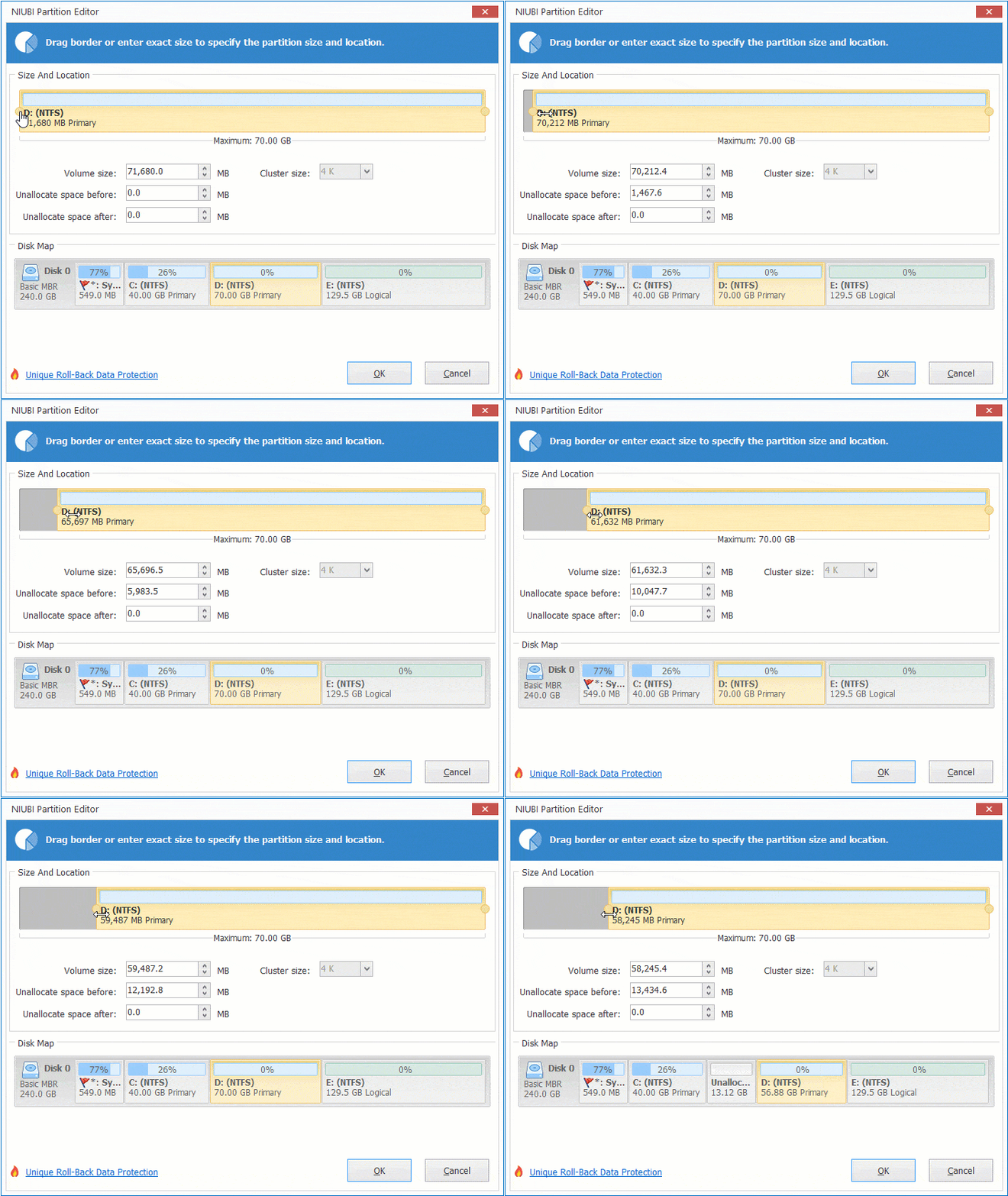
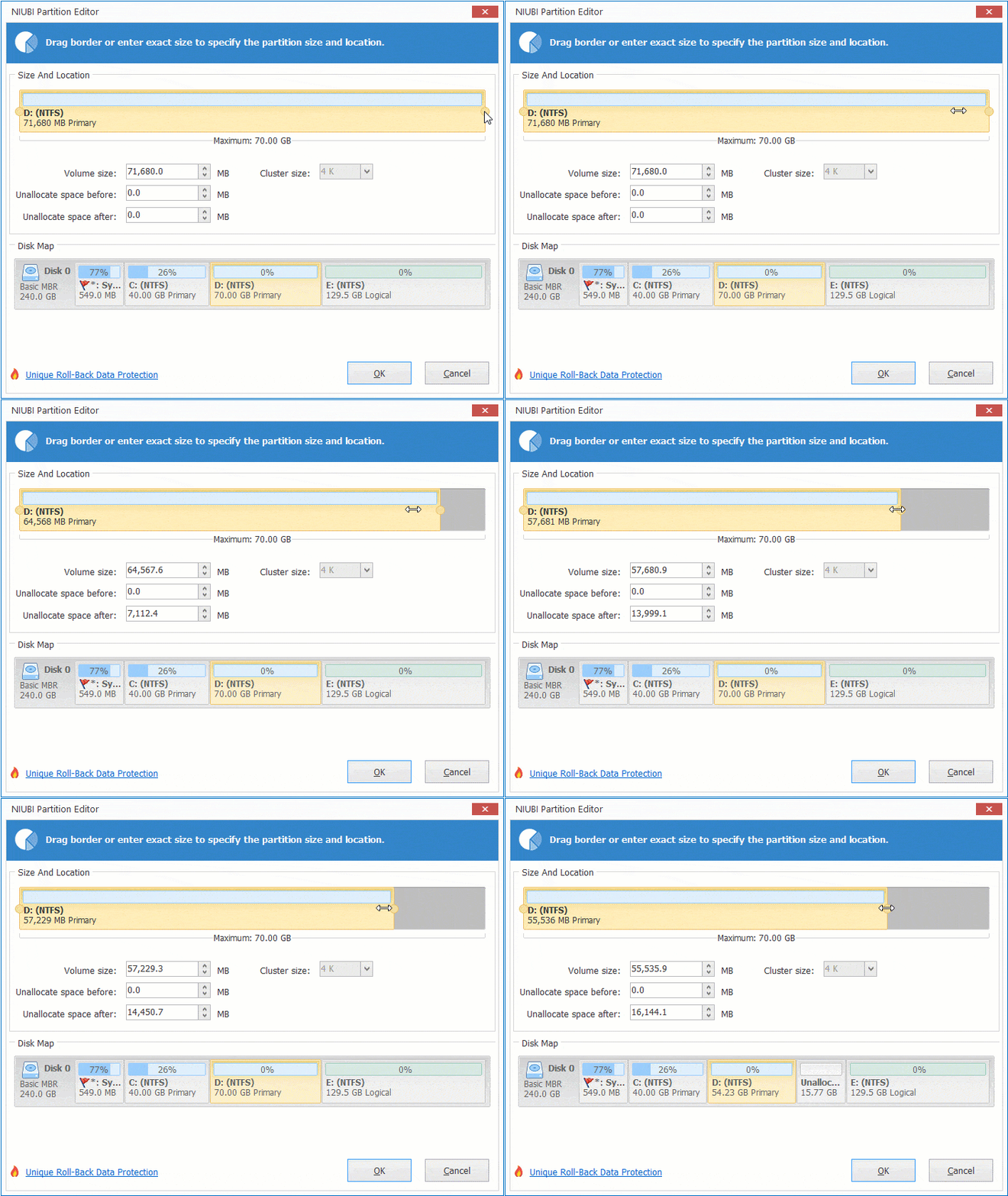
Unlike Disk Management, this software can make Unallocated space on either the left or right side when shrinking a partition. Simply right-click the target drive (such as D:) and select "Resize/Move Volume". You have two options in the pop-up window:
Option 1: Drag the left border towards the right to create Unallocated space on the left.
Option 2: Drag the right border towards the left to create Unallocated space on the right.
Because of the potential risk of data loss when changing disk partitions, you should back up the server and use reliable software. Better than other tools, NIUBI Partition Editor provides advanced technologies to protect your system and data:
- Hot Clone – Clone the system disk or data partition without interrupting the server. You can boot from the cloned disk immediately if the primary disk fails.
- Virtual Mode – All operations are listed as pending for preview. Real disk partitions won't be modified until you click "Apply" to confirm.
- Advanced file-moving algorithm – 30% to 300% faster when shrinking, moving, or cloning partitions.
- Cancel-at-will – You can cancel ongoing operations safely at any progress without losing data or damaging partitions.
- 1-Second Rollback – If any error is detected while modifying partitions, it automatically reverts the server to its original status instantly.
Beyond fixing the issue where you cannot extend C drive in Windows Server 2019/2022, this software helps you perform many other disk partition management operations.
 © 2009 - NIUBI Technology All Rights Reserved. |