
When storage allocations approach capacity limits, administrators frequently look for ways to expand partitions without starting over. To modify layouts safely, Windows provides native system controllers as well as professional third-party software. While the built-in controller includes a dedicated mechanism to update boundaries, it operates under strict layout prerequisites. Otherwise, users encounter restrictive constraints where configurations become unavailable. This article explains how to extend volume partitions in Windows Server 2019 without losing data.
How to extend partition with Server 2019 Disk Management
To expand drive parameters via native configurations, your current storage topology must satisfy several structural prerequisites:
- There must be an adjacent partition located directly on the right side of the target drive.
- This adjacent drive must share an identical configuration type (Primary or Logical) with the partition you want to expand.
- The right-side contiguous volume must be completely deleted beforehand to generate an unallocated block.
- An alternate storage location must be available to preserve all files migrated from the deleted volume.
If your local disk allocation satisfies these layout dependencies, you can update partitions without third-party tools.
Steps to extend volume in Windows Server 2019 with Disk Management:
- Press the Windows key + X simultaneously on your keyboard and select Disk Management from the configuration list.
- Right-click the contiguous right partition (such as D:) and select "Delete Volume" to generate unallocated block space. (Warning: Remember to transfer critical files to a secure backup drive before deletion.)
- Right-click the target partition situated directly on the left contiguous boundary (such as C:) and select "Extend Volume."
- Click Next when the Extend Volume Wizard interface initializes on the screen.
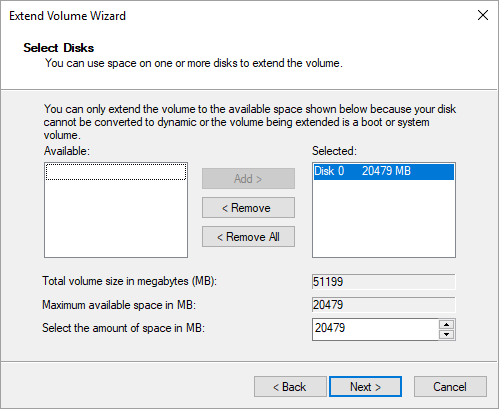
- The utility automatically maps the maximum available block sectors; click Next to proceed.
- Click Finish to authorize and execute the storage allocation changes immediately.
Limitations of Windows Server 2019 Extend Volume function
Built-in utilities impose several structural layout constraints that block boundary expansion routines. Typical infrastructure blockers include:
1. Unallocated space can only be extended to the left contiguous partition
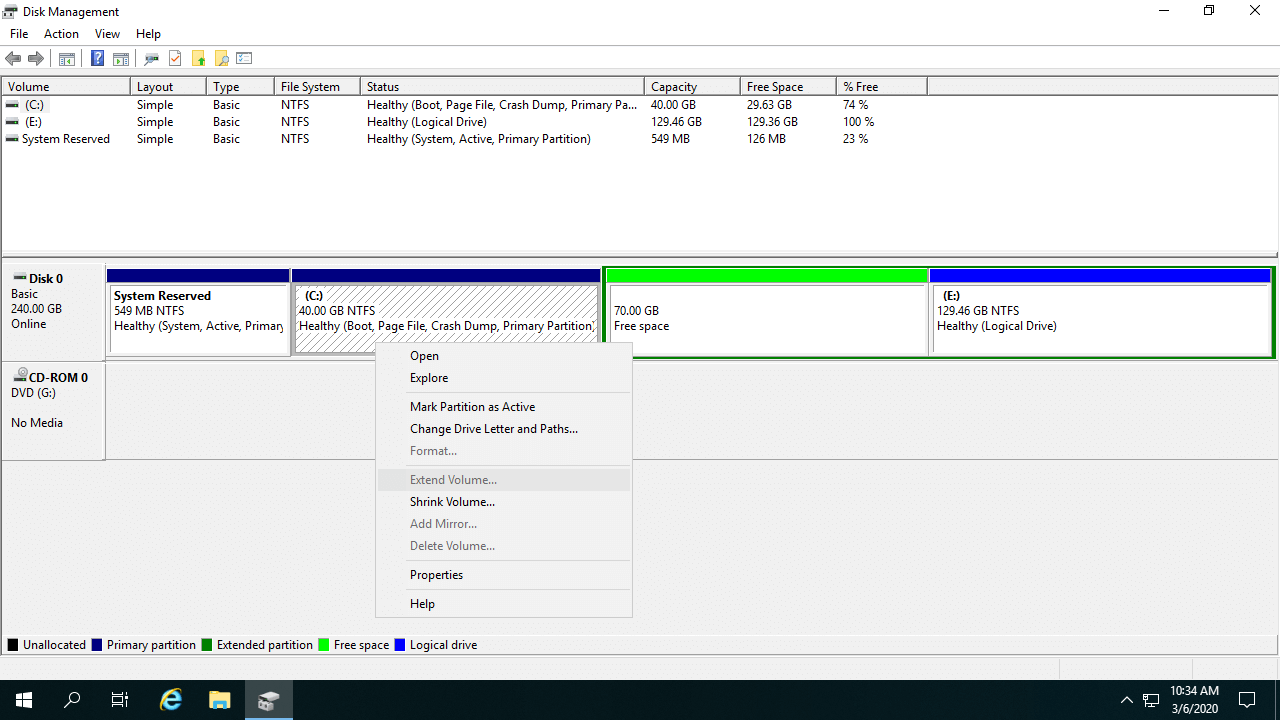
The native utility requires the unallocated sector block to sit directly adjacent to the right side of the target partition. When non-contiguous layouts occur, the Extend Volume option is disabled. As illustrated in the workspace screenshot below:
- The option is unavailable for the C drive because the unallocated block remains separated by intermediate partitions.
- The expansion choice is grayed out for drive E because the unallocated block resides on its left boundary.
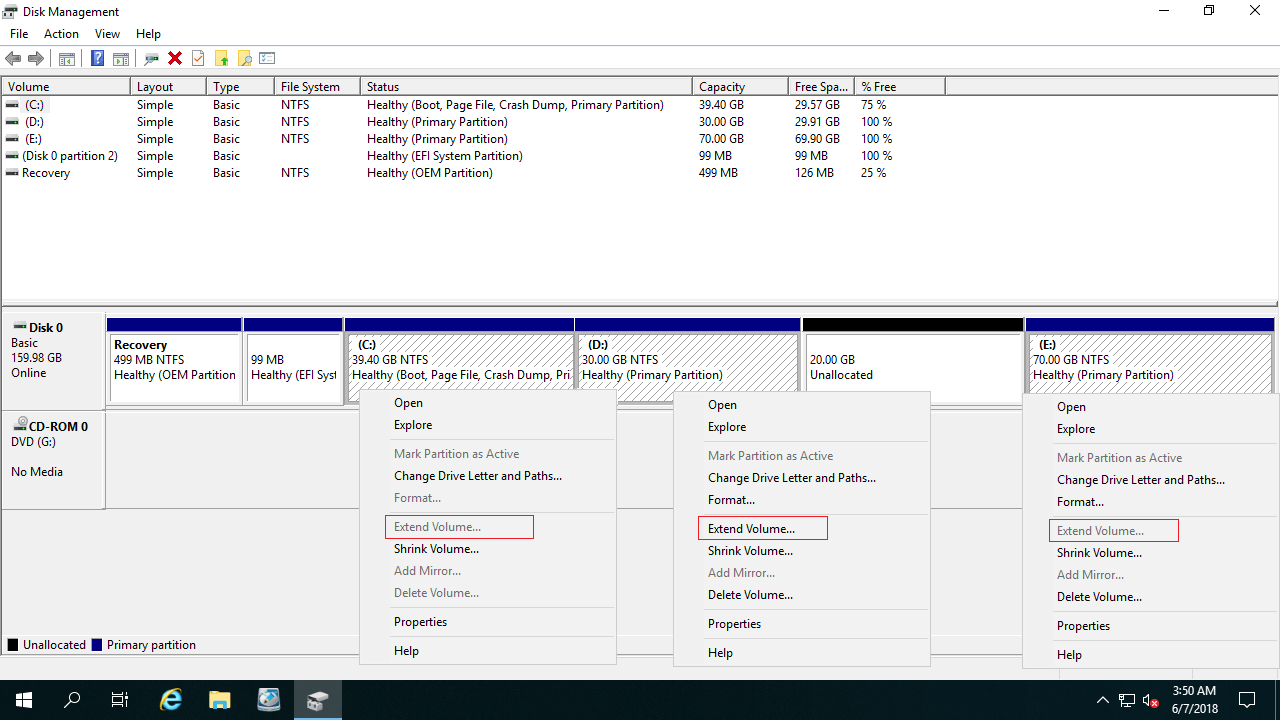
The native shrink tool can only generate unallocated space on the right side of a partition. Consequently, the only method to expand a drive using Disk Management is completely deleting your contiguous data volumes.
2. Only NTFS partitions can be extended
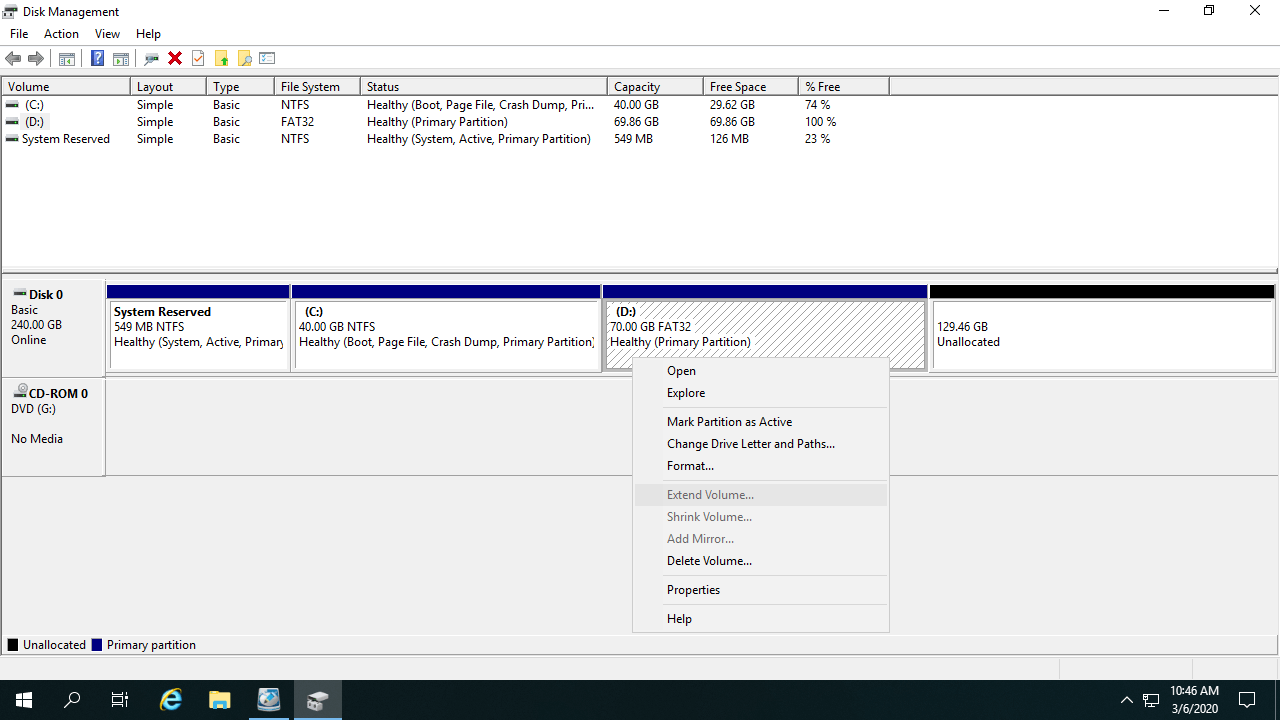
The built-in controller exclusively supports configurations formatted with the NTFS file tracking system. FAT32 and alternative file structures cannot be modified under this framework. As shown in the panel, the Extend Volume option is grayed out because drive D is formatted with a FAT32 filesystem layout.
3. The partitions to delete and extend must be the same
While GPT disk architectures eliminate this issue, MBR partition styles enforce strict block container matching. Both the target partition and the adjacent drive slated for deletion must share identical structural types. If one drive is configured as a Primary block and the other as a Logical container, options remain fully unavailable even after a deletion.
Better way to extend disk partition with server partition editor
Deploying professional software provides total architectural flexibility when modifying server layout configurations. Compared to native utilities, NIUBI Partition Editor handles complex storage scenarios seamlessly while resizing partition parameters:
- It provides comprehensive boundary modification features for both NTFS and FAT32 file systems.
- It can generate clean unallocated block space on either side of the partition during size reduction.
- It merges unallocated space directly into any contiguous partition in a single operational step.
- It relocates unallocated sectors past intermediate blocks to combine safely with non-adjacent partitions on the same disk.
- When a storage disk is fully saturated, it can migrate partitions or clone configurations to larger drives.
Outperforming conventional utilities, this application integrates premium data protection architectures to secure enterprise system layers:
- Virtual Mode - Planned modifications are safely staged as pending tasks for visual verification before changes are committed to physical sectors.
- Cancel-at-will - If an incorrect configuration is applied, ongoing processes can be safely aborted midway without risking volume errors.
- 1-Second Rollback - If any system exception occurs during boundary reallocation, the software instantly snaps the server back to its original state.
- Hot Clone - Clone system disks or data storage arrays without server downtime, providing an immediately bootable secondary drive if hardware failures occur.
- It runs 30% to 300% faster due to an advanced file-moving algorithm, which optimizes performance when processing massive datasets.
After downloading NIUBI Partition Editor, follow the instructions in the technical video tutorials to reallocate your server capacity safely:
Steps to extend system partition C on Windows Server 2019/2022:
Steps to extend a data partition on Windows Server 2019/2022:
In Summary
Native Disk Management can only assist you when extending an NTFS volume by completely deleting your right-side contiguous partition layout. If you need to reconfigure FAT32 filesystems, shrink alternative drives for reallocation, or manage non-contiguous blocks, adopting professional third-party utilities is necessary. Equipped with robust data protection architectures, NIUBI Partition Editor ensures storage system adjustments execute smoothly and securely. Beyond shrinking, moving and extending partitions in Server 2019, 2022, and 2025, the application simplifies daily administrative tasks across legacy infrastructures from Server 2003 through 2016.
 © 2009 - NIUBI Technology All Rights Reserved. |