
If you created too many drives when installing the operating system, you can combine disk drives without reinstalling your operating system and all programs. When a drive is getting full, you can also combine it with another partition that has plenty of free space. For example, you can merge C and D drives to increase C drive free space. However, if your aim is to extend a partition rather than reducing partition numbers, it is better to resize partitions instead of merging. This article explains how to merge partitions in Windows Server 2019/2022 with both native tools and safe partitioning software.
Merge Two Partitions with Windows Server 2019/2022 Disk Management
As with previous releases, Disk Management in Windows Server 2019/2022 does not have a direct "Merge Volume" function, but you can merge partitions indirectly using the Extend Volume function. Because this method is not straightforward, you are likely to encounter issues. Compared to third-party software, Disk Management has many limitations, which will be described in the next section.
Note: When you choose to combine partitions, one of the targeted volumes must be completely deleted. Ensure you transfer all files to a secondary location before initiating deletions.
Steps to merge partitions in Windows Server 2019/2022 via Disk Management:
- Press Windows + X on your keyboard and select Disk Management.
- Right-click the adjacent partition on the right (such as drive D:) and select Delete Volume to make Unallocated space.
- Right-click the target partition on the left (such as C:) and select Extend Volume.
- Finish the Extend Volume Wizard by simply clicking Next.
As mentioned above, Disk Management has many limitations when merging partitions in Windows Server 2019/2022:
- If programs or Windows services are installed on a drive, you cannot delete it or move the files to another drive.
- If you do not have another partition to back up your files, you cannot delete the volume to create Unallocated space.
- The target partition must be formatted with the NTFS file system.
- On an MBR disk, both partitions must be the same type (either both Primary or both Logical).
- Disk Management can only merge Unallocated space to the adjacent partition on the left. For example, the Unallocated space created by deleting drive E can only be merged into drive D; it cannot be merged into the non-adjacent drive C or the right adjacent drive F.
Combine Server Partitions with Safe Partition Software
Compared to Disk Management, NIUBI Partition Editor provides complete flexibility when you need to merge partitions in Windows Server 2019/2022/2025:
- It features an intuitive interface that allows you to merge partitions within a few clicks.
- All files on the source partition are automatically transferred to a folder on the target volume.
- You can merge a partition into either its left or right contiguous volume without restrictions.
- It fully supports both NTFS and FAT32 filesystems, as well as mixed Primary and Logical partitions.
Steps to merge partitions in Windows Server 2019/2022 via NIUBI Partition Editor:
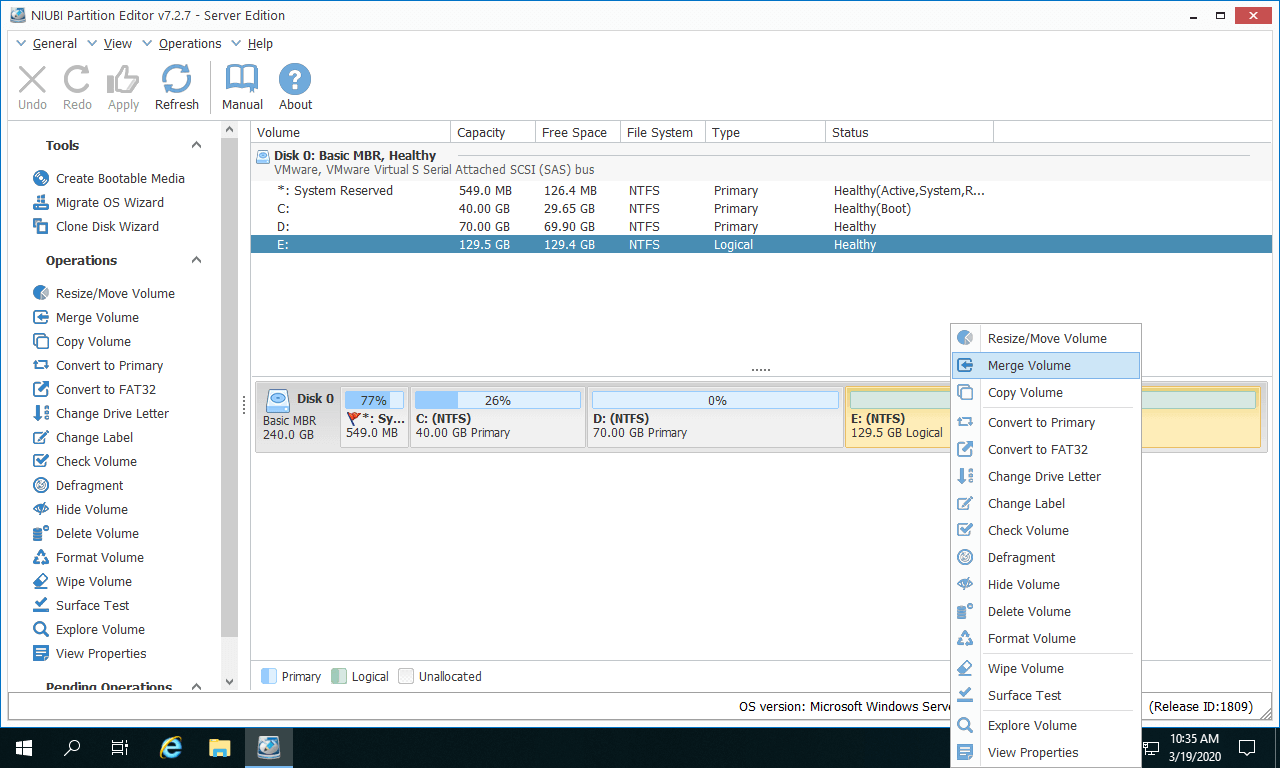
- Download NIUBI Partition Editor, right-click either of the two partitions you want to merge and select "Merge Volume".
![NIUBI Partition Editor]()
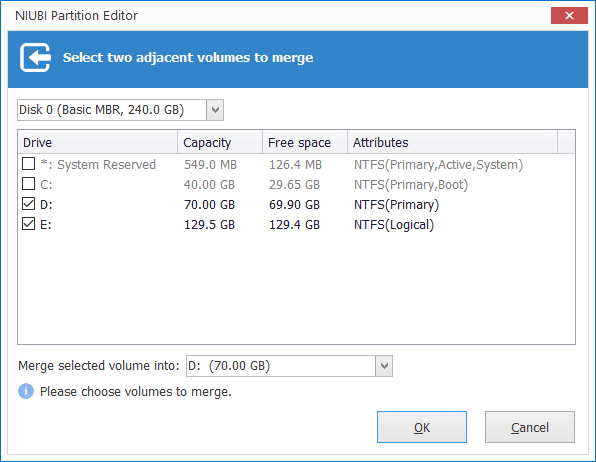
- Select the checkboxes next to the two adjacent partitions you want to merge and click OK.
![Select volume to merge]()
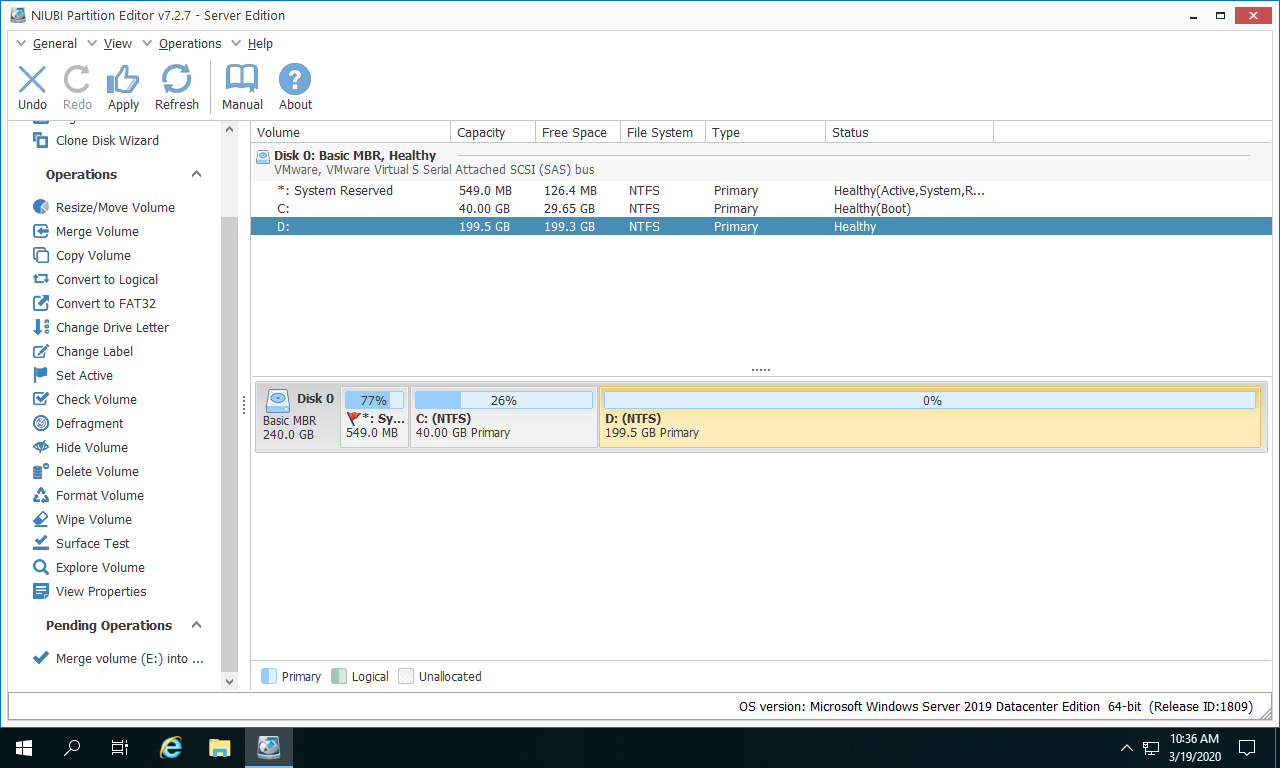
- Click the Apply icon positioned on the top left to confirm and execute the pending operations.
![Merge complete]()
Steps to combine partitions on Windows Server 2019/2022 via video guide:
- For two data partitions, you can select either one as the destination partition, but the system C drive cannot be merged into a data partition.
- The software works in virtual mode first, and real partitions will only be modified after you click Apply to confirm. If you find any pending operations are incorrect, you can click Undo to cancel the most recent or multiple operations.
Better Idea Than Merging Partitions in Windows Server 2019/2022
No matter whether you use Windows Disk Management or third-party software to merge partitions, one of the partitions will be deleted. This is fine for data partitions, but it is not recommended to merge drive D to C. Because programs and Windows services are often installed on drive D, deleting this partition will cause them to stop working.
Instead of deleting a partition, a better idea is to shrink another partition on the same disk to make Unallocated space, and then add Unallocated space to the C drive. By doing this, your operating system, installed programs, and files remain intact.
Follow the instructions demonstrated in the video tutorial to extend the C drive in Server 2019 by shrinking another data volume:
Besides shrinking, extending, and merging partitions in Windows Server 2019/2022/2025, NIUBI Partition Editor provides many other disk and partition management features. It features advanced data protection technologies (such as Virtual Mode, Cancel-at-will, and 1-Second Rollback) and an optimized file-moving algorithm to ensure tasks are completed safely and efficiently.
 © 2009 - NIUBI Technology All Rights Reserved. |