
Besides creating new partitions, Unallocated space can be repurposed to expand other volumes. You can generate this space by deleting or shrinking partitions using native tools or third-party partition software. Shrinking partitions reclaims storage space without data loss, which offers a safer approach than deleting partitions entirely. Many administrators report that built-in tools cannot merge Unallocated space into the C drive after shrinking. This article explains how to safely add Unallocated space to the C drive in Windows Server 2019/2022 without data loss.
Merge Unallocated Space into the C Drive via Disk Management
The integrated Windows Server 2019 Disk Management console can add Unallocated space to an existing partition. However, this native tool is ineffective for most cases, because it can only merge Unallocated space to the adjacent partition on the left. In addition, this partition must be formatted with NTFS file system.
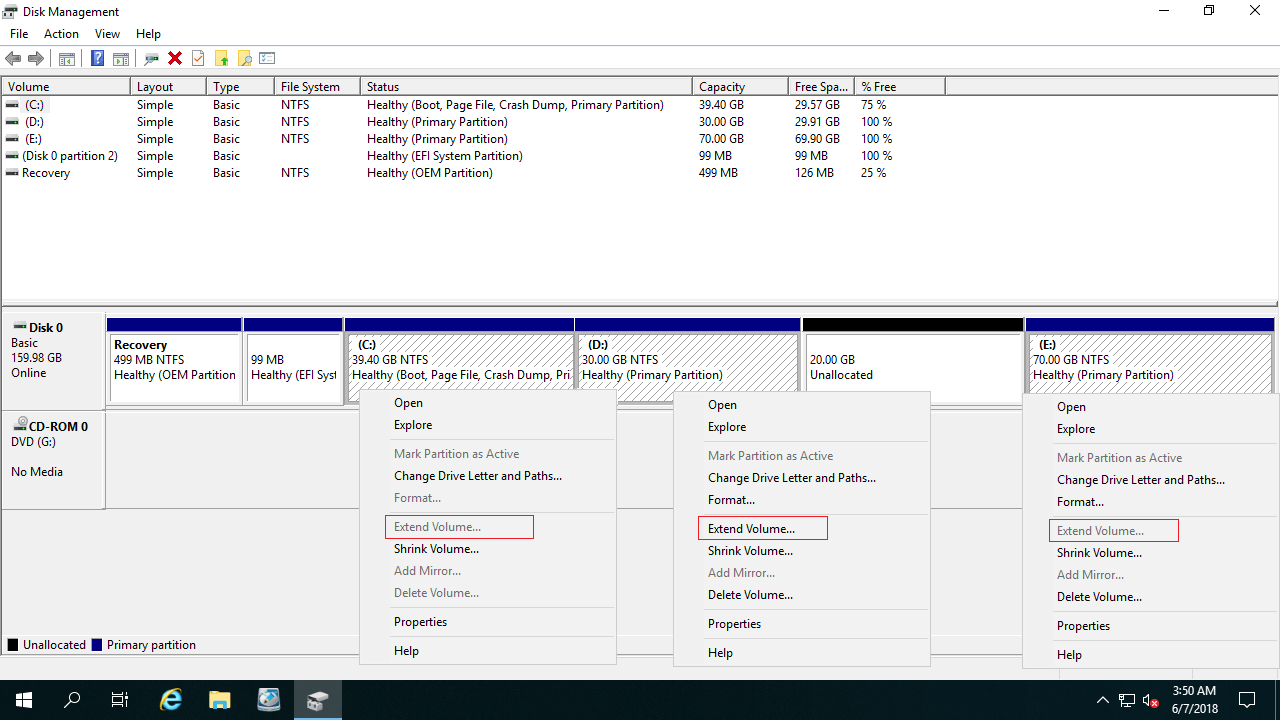
The built-in Shrink volume feature always creates Unallocated space on the right side of the shrunken drive. As illustrated in the Disk Management console, Unallocated space reclaimed by shrinking drive D can only be added back into drive D itself. Consequently, the extend volume is disabled for the non-adjacent C drive.
Add Unallocated Space into the C Drive with NIUBI Partition Editor
If you have shrunk drive D using Disk Management, NIUBI Partition Editor can move the Unallocated space to the left side and then add it to the C drive. You can perform this easily by dragging and dropping on the graphical disk map.
Steps to add Unallocated space to C drive in Windows Server 2019/2022 by moving partitions:
- Download NIUBI Partition Editor, right-click drive D:, and select "Resize/Move Volume". Drag the middle of drive D rightward in the pop-up window to move Unallocated space to the left.
- Right-click the system C: drive, select "Resize/Move Volume" again, and drag the right border rightward to combine this Unallocated space.
- Click Apply on the top left to confirm and execute.
If you use any types of hardware RAID arrays, do not break the array or do any operations to the RAID controller. Just follow the same steps above.
Resizing partitions carries inherent risks of system damage and data loss. Therefore, it is highly recommended to back up your server in advance and use safe partition software.
Compared to other disk partition tools, NIUBI Partition Editor provides advanced data protection technologies to secure your server:
- 1-Second Rollback - if it detects any known error while resizing partitions, it automatically reverts the server to its original status instantly.
- Hot Clone - clone disk partitions without server interruption. You can clone the system disk regularly as a backup. Whenever the system disk is down, you can boot from the cloned disk directly without wasting time to restore.
- Cancel-at-will - if you applied wrong operations, you can cancel the ongoing tasks at any progress before they finish.
- Virtual Mode - all operations are listed as pending for preview, and real disk partitions won't be modified until you click "Apply" to confirm.
- Advanced file-moving algorithm - shrink, move, and copy partitions 30% to 300% faster.
Move Unallocated Space from a Separate Physical Disk
On some servers, there is no other partition or not enough free space on the same disk. In this case, no software can move Unallocated space from a different, separate disk.
To solve this problem, you have two options to expand C drive in Windows Server 2019/2022:
- For a physical server, you can clone the system disk to a larger one and extend partitions with additional disk space.
- If you run a virtual machine, you can expand the virtual disk in VMware or Hyper-V. After expanding the disk, the additional space will be shown as Unallocated at the end. Then follow the steps above to move and add the Unallocated space to the C drive.
Besides shrinking, moving, and extending partitions in Windows Server 2025/2022/2019, as well as 2016/2012/2008/2003, this reliable server partition software provides a comprehensive toolkit for secure volume copying, file system optimization, data erasing, and disk conversion tasks.
 © 2009 - NIUBI Technology All Rights Reserved. |