
When the system disk runs out of free space on a production server, administrators can clone the disk to a larger hard drive to migrate applications safely. This approach is significantly faster and easier than executing traditional storage image backup and recovery workflows. If you deployed your operating system on an aging mechanical drive, replacing it with a solid-state drive (SSD) offers massive performance improvements. With the right software, you can clone disk partitions without interrupting the server. It also allows you to resize partitions to fit different disk capacities. This article explains how to clone a disk in Windows Server 2019/2022 safely.
Sector-to-Sector Clone VS File-to-File Copy
There are two primary methods to clone disk partitions in Windows Server 2019/2022: sector-to-sector copy and file-system-based copy.
Running a sector-to-sector copy is exceptionally slow because every individual sector on the destination disk must match the source exactly. With this method, you cannot change partition size during cloning. For example, if you clone a 250GB disk to a 500GB drive, the initial 250GB is copied identically, while the remaining capacity becomes unallocated space.
In contrast, a file-system-based copy is much faster because it only transfers used sectors rather than empty space. Additionally, it allows you to resize partitions on the target disk during the cloning process to fit drives of different capacities.
For most server disk upgrades and data migrations, performing a time-consuming sector-to-sector clone is unnecessary.
How to Clone Windows Server 2019/2022 Disk to SSD/Larger HDD
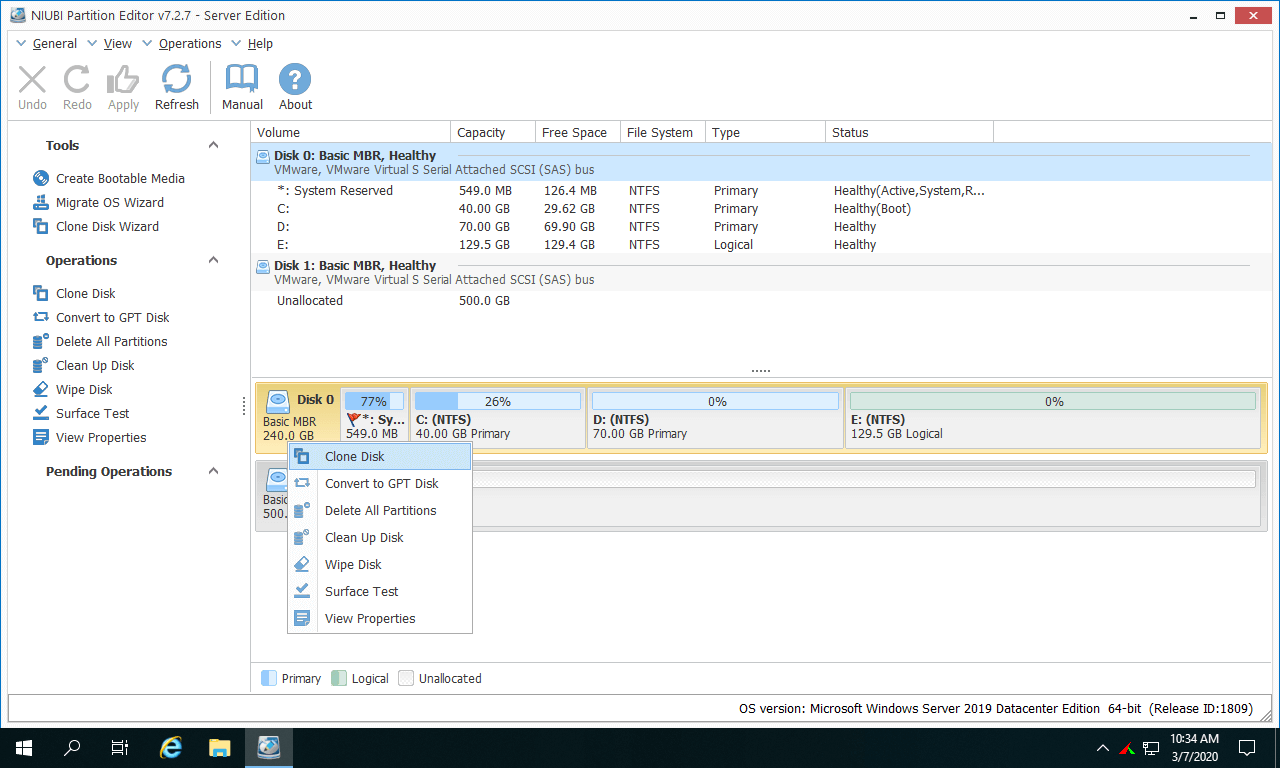
- Download and launch NIUBI Partition Editor. You will see disk structures, partition lists, and detailed parameters in the main window.
- Right-click the leftmost area of the source disk and select the "Clone Disk" option.
![Clone Disk]()
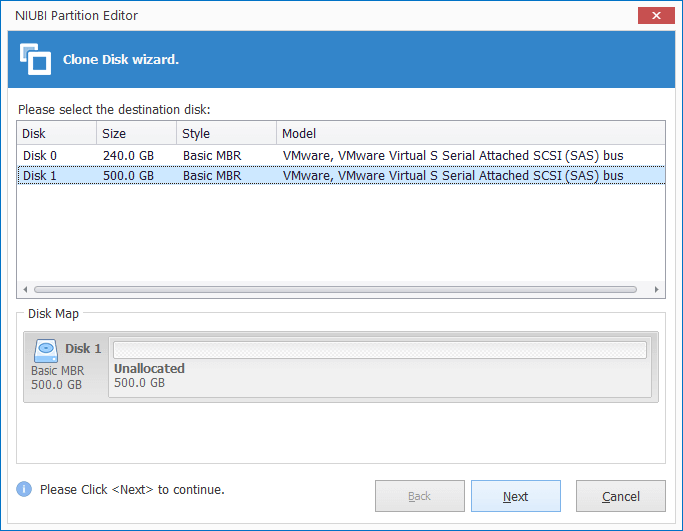
- Select your destination disk from the list and click Next. (Note: Existing partitions on the target drive will be deleted; ensure vital files are backed up before proceeding).
![Select disk]()
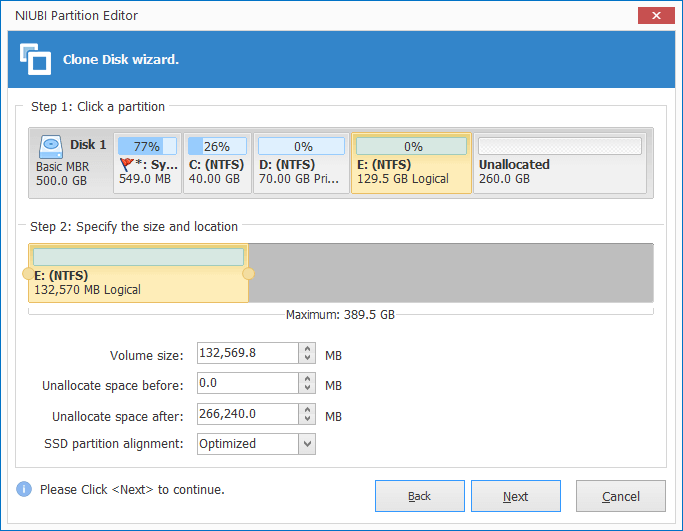
- Modify partition sizes and locations starting from the last partition. For example, if there is unallocated space on the right of drive E, dragging its right border rightward expands this partition, while dragging the center moves its position.
![Edit partition]()
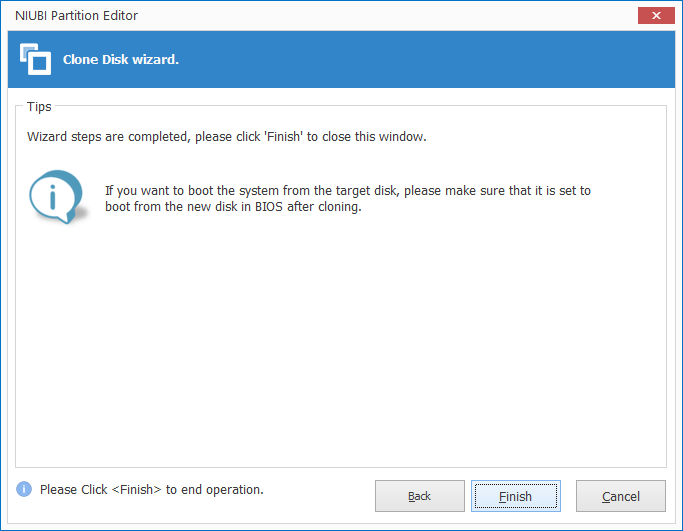
- Click Finish in the confirmation window to proceed.
![Confirm]()
- Click Apply on the top left to execute pending operations.
![Apply]()
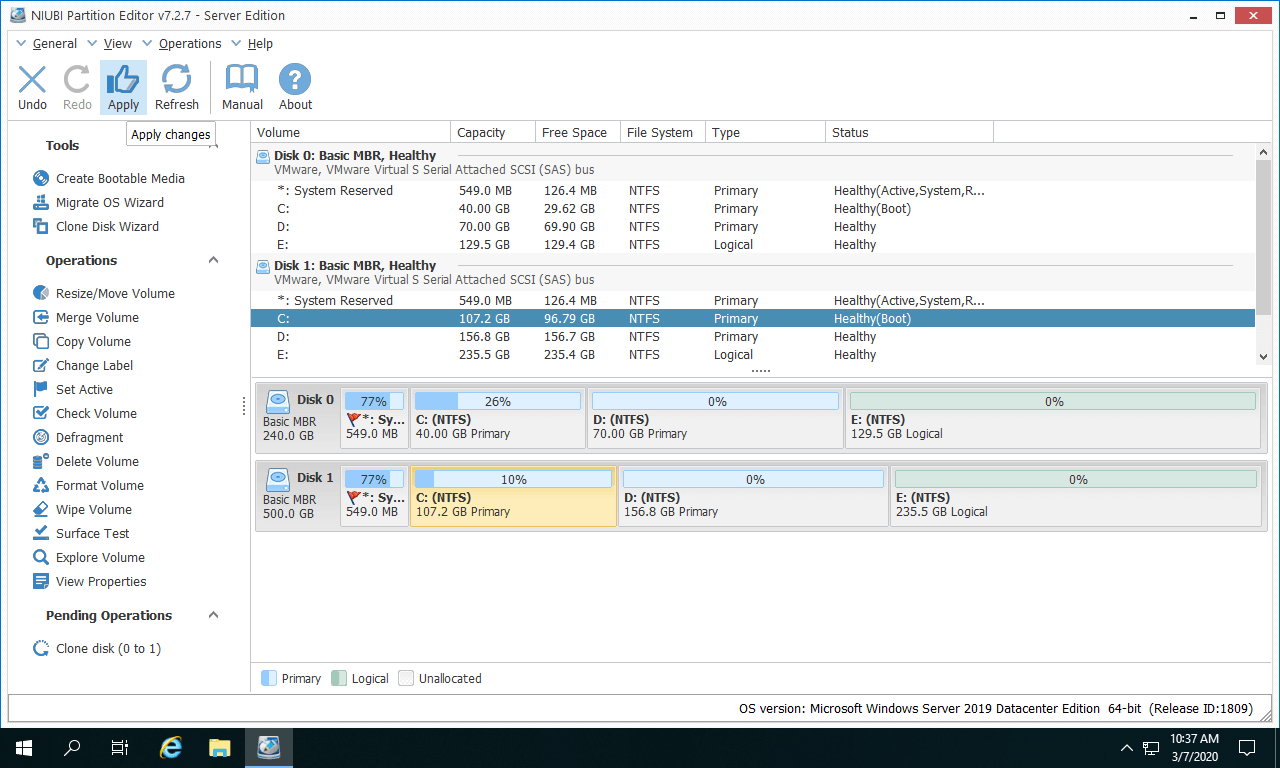
Watch how to clone Windows Server 2019/2022 disk:
Benefits of cloning disk in Windows Server with NIUBI Partition Editor:
- Faster cloning speed - An optimized file-moving algorithm helps clone data 30% to 300% faster than other tools.
- Hot Clone & Disaster Recovery - Clone the system disk directly in Windows without rebooting, allowing you to quickly switch to the cloned drive if the original fails.
- Clone to smaller or larger disk - Supports cloning to a smaller disk, as long as its capacity is larger than the used space of the source drive.
How to Copy Server 2019 Partition to Another Disk
To copy a partition to another disk in Windows Server 2019/2022, there must be unallocated space on the target disk. If there is no unallocated space, you can shrink a partition to create some. The unallocated space must be equal to or larger than the used space of the source partition.
Steps to copy partition in Windows Server 2019/2022 with NIUBI Partition Editor:
- Right-click the source partition (such as drive D) and select "Copy Volume".
- Select the unallocated space on the target disk and click Next.
- Adjust the partition size and location, then click Finish.
- (Optional) Right-click the original partition and select "Change Drive Letter" to change its letter.
- (Optional) Right-click the new target partition, select "Change Drive Letter", and set it to D.
- Click Apply on the top left to execute.
If applications or files on the original partition require the same file path, assign the original drive letter to the new partition. Otherwise, you can skip changing drive letters.
Video guide: How to copy partition in Windows Server 2019/2022
Besides cloning disks and partitions in Windows Server 2019/2022/2025, NIUBI Partition Editor helps you resize, merge, convert partitions, wipe data, and scan for bad sectors.
 © 2009 - NIUBI Technology All Rights Reserved. |