
If you want to decrease the size of a partition in Windows Server 2019/2022, you can use Windows built-in tools or third-party partition software. Native tools include Disk Management and DiskPart. If you like to use a graphical interface tool, you can follow the guide to shrink a partition in Server 2019 with Disk Management. Some server administrators prefer using command-line tools, so this article explains how to shrink a partition with DiskPart in Windows Server 2019/2022. It also explains the limitations of DiskPart and introduces a better and safer way to shrink partitions.
How to Shrink Partition with DiskPart in Windows Server 2019/2022
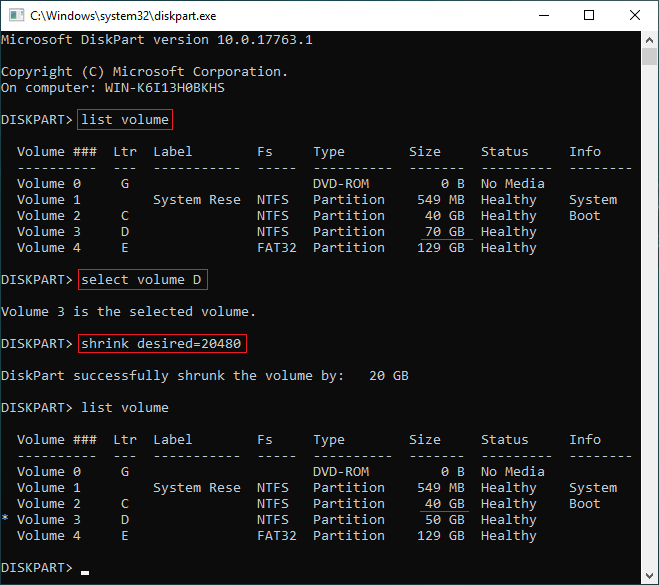
- Press Windows and R together on your keyboard, type diskpart, and press Enter to open the command prompt.
- Type list volume and press Enter.
- Type select volume D and press Enter. (Replace D with the drive letter or number of the partition you want to shrink.)
- Type shrink desired=XX and press Enter. (XX is the amount of space to shrink in megabytes.)
Run the list volume command once more. As shown in the screenshot, drive D successfully shrunk from 70GB to 50GB.
Shrinking a partition with DiskPart is fast, but as mentioned above, it has several limitations.
Limitations of DiskPart to Shrink Volume in Windows Server 2019/2022
1. Only NTFS Partition Is Supported
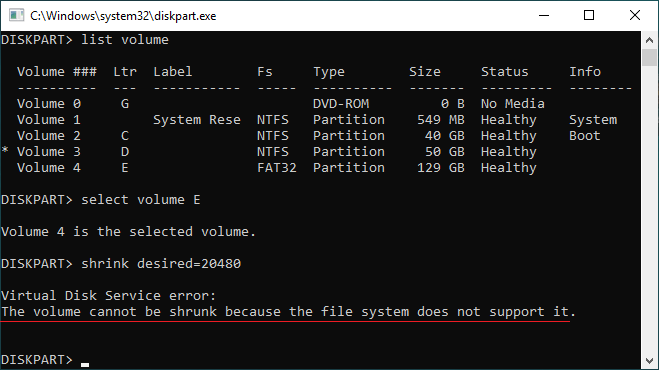
DiskPart can only shrink partitions formatted with the NTFS file system (or RAW). If you try to shrink a FAT32 partition, you will receive an error message: "The volume cannot be shrunk because the file system does not support it."
2. Unallocated Space Can Only Be Made on the Right
As with Disk Management, DiskPart can only shrink a partition to the left and create Unallocated space on the right. Note: Unlike Disk Management, DiskPart only lists existing volumes without a visual layout and does not show Unallocated space.
This is fine if you only want to create new volumes with the Unallocated space. However, it is a big problem if you want to extend another partition. As with Disk Management, the DiskPart extend command can only add Unallocated space to the adjacent partition on the left. In short, these two native tools cannot extend a partition by shrinking another one.
3. Sometimes It Can Only Shrink Little Space
When there are unmovable files on the system disk, shrinking the C drive via DiskPart can trigger an error: "The specified shrink size is too big." This is because DiskPart cannot shrink a partition beyond the point where unmovable files are located.
Better Way to Shrink Partition in Windows Server 2019/2022
These limitations do not exist when using third-party partition software, which allows you to resize partitions directly on a graphical disk map. However, since changing partition sizes affects system data, keeping a backup and using reliable software are essential to prevent data loss.
Compared to other partition tools, NIUBI Partition Editor is much safer and faster because of its advanced technologies:
- Virtual Mode - all operations are listed as pending for preview, and real disk partitions won't be modified until you click "Apply" to confirm.
- Cancel-at-will - if you applied wrong operations, you can cancel the ongoing tasks at any progress before they finish.
- 1-Second Rollback - if it detects any known error while resizing partitions, it automatically reverts the server to its original status instantly.
- Advanced file-moving algorithm - shrink, move, and copy partitions 30% to 300% faster.
Download NIUBI Partition Editor and follow the actions demonstrated in the video tutorials to shrink and extend partitions securely:
How to extend system partition C by shrinking another volume:
How to extend D drive by shrinking another partition:
Besides shrinking and extending partitions in Windows Server 2025/2022/2019, as well as 2016/2012/2008/2003, this reliable server partition software provides a comprehensive toolkit for secure volume moving, disk partition copying, file system optimization, data erasing, and disk conversion tasks.
 © 2009 - NIUBI Technology All Rights Reserved. |